One place for every viewing, meeting and follow-up
- Overdue, today and next 7 days
- Viewings with proof of visit
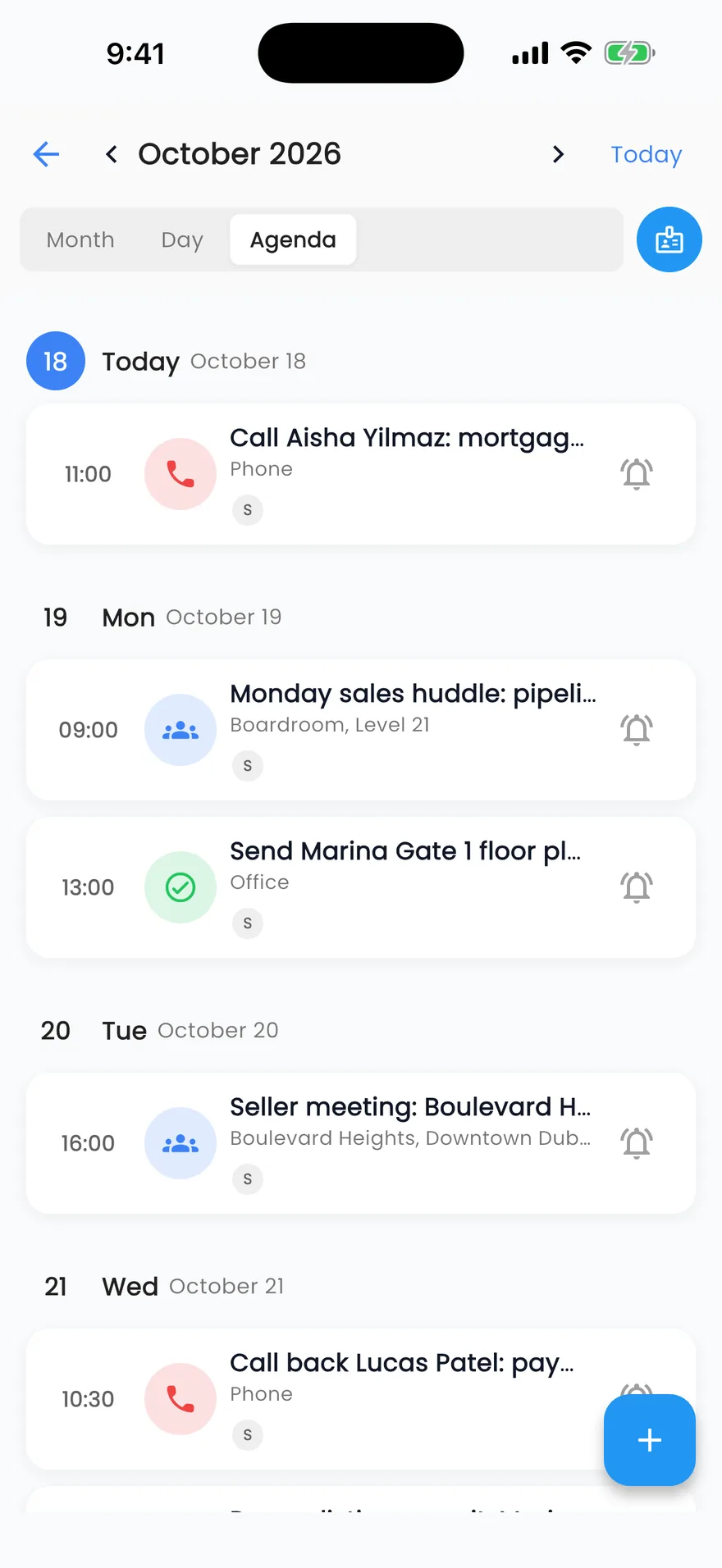
- Month, day and agenda in the app
How it works
Book it, get reminded, record how it went
- 01
Book the viewing
Pick the listing, the client and a time, choose how long it takes, and the agent is notified, with a reminder before it starts.
- 02
Get reminded on time
Every follow-up has a due time, and calendar events remind the agent from 15 minutes to a day before.
- 03
Record how it went
Mark the viewing completed, rescheduled, cancelled or a no-show, then set the next follow-up on the lead.
Scheduling built for agents on the road
A Dubai agent's day is viewings across town and calls in between. Propfusion keeps all of it in one place.
Calendar
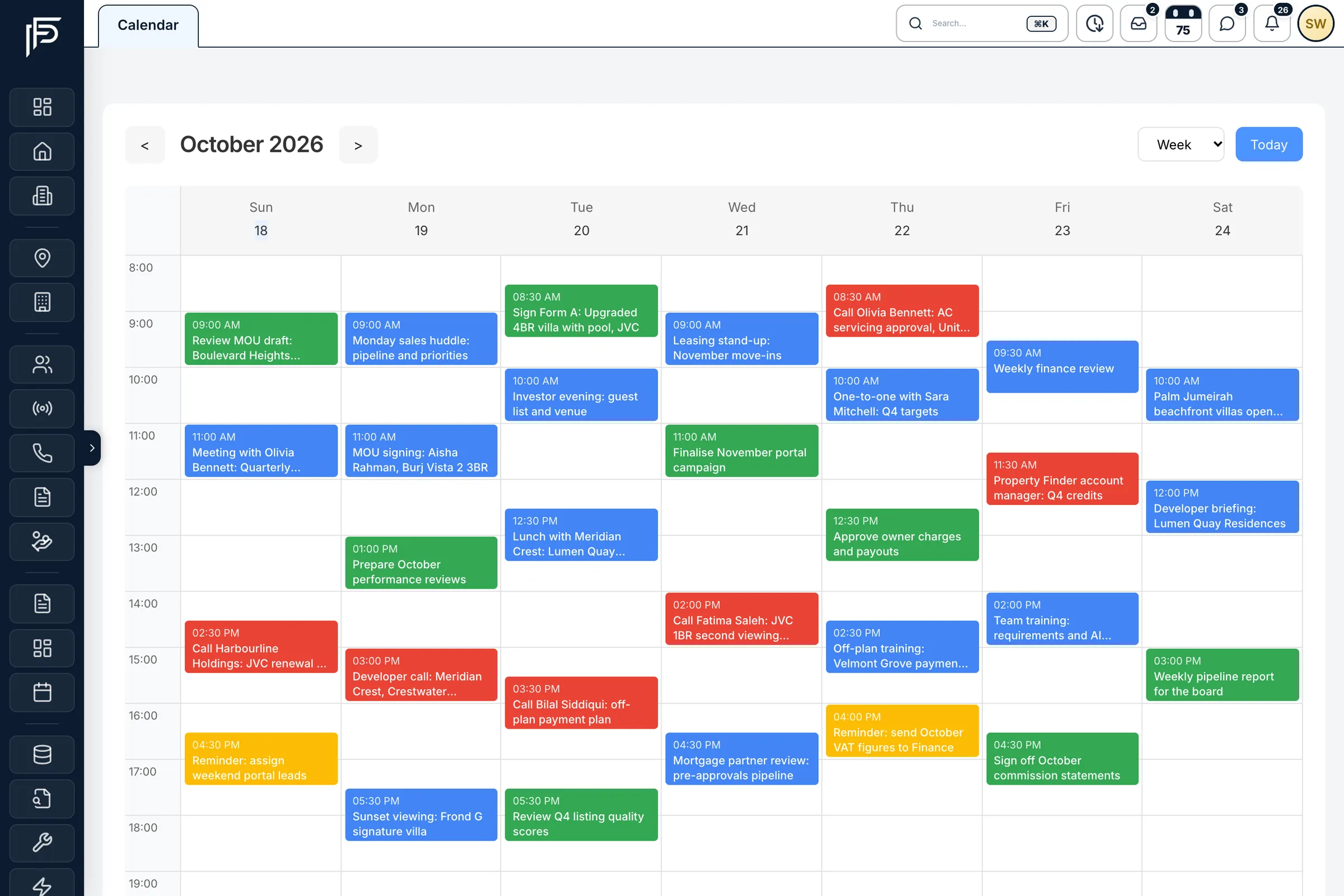
Every meeting, call and task in one week
- Month, week and day views, with Today one click away
- Meetings, calls, tasks and reminders in their own colours
- Pick a time slot to add an event straight onto the calendar
Viewings
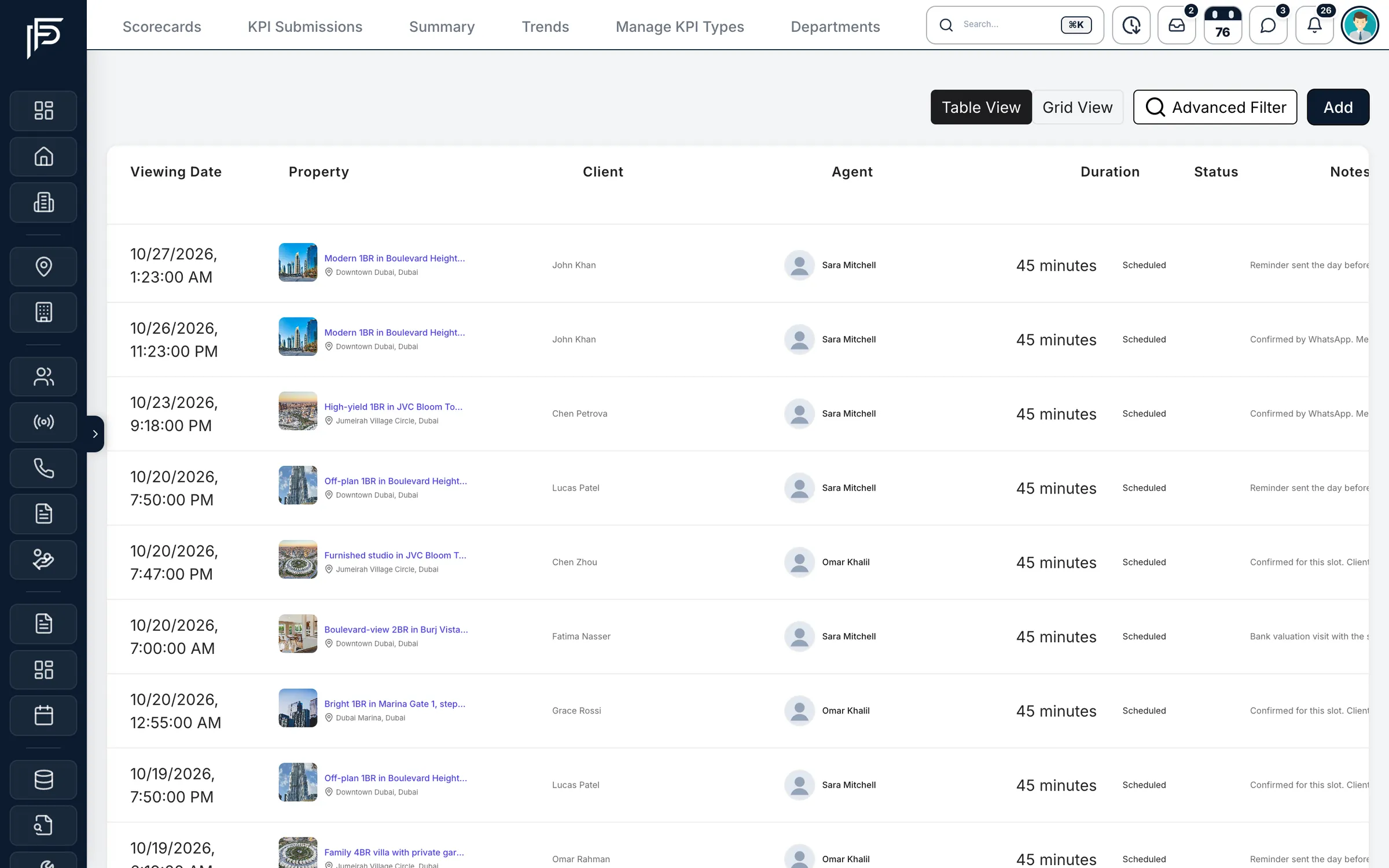
Every viewing, who's going and when
- Book from the listing or the Viewings page, from 30 minutes to 2 hours on the web, or up to 3½ hours in the app
- Filter by agent, listing, status or date range
- Completed viewings count toward each agent's KPI scorecard
On the lead
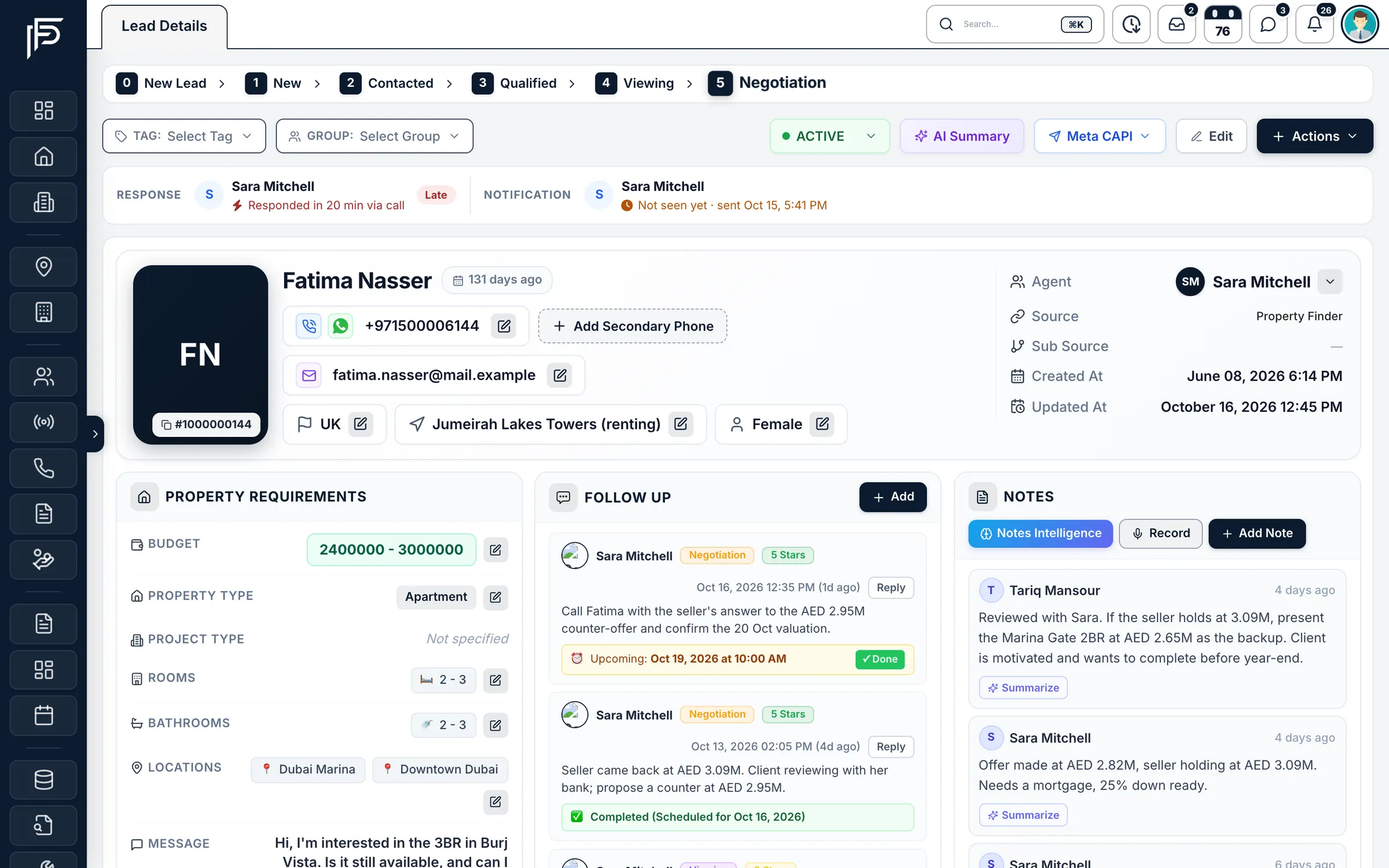
Every follow-up stays on the client's page
- Upcoming and completed follow-ups, each with its note
- Mark one done or reply to it without leaving the lead
- How fast the agent first responded, shown at the top
Follow-up report
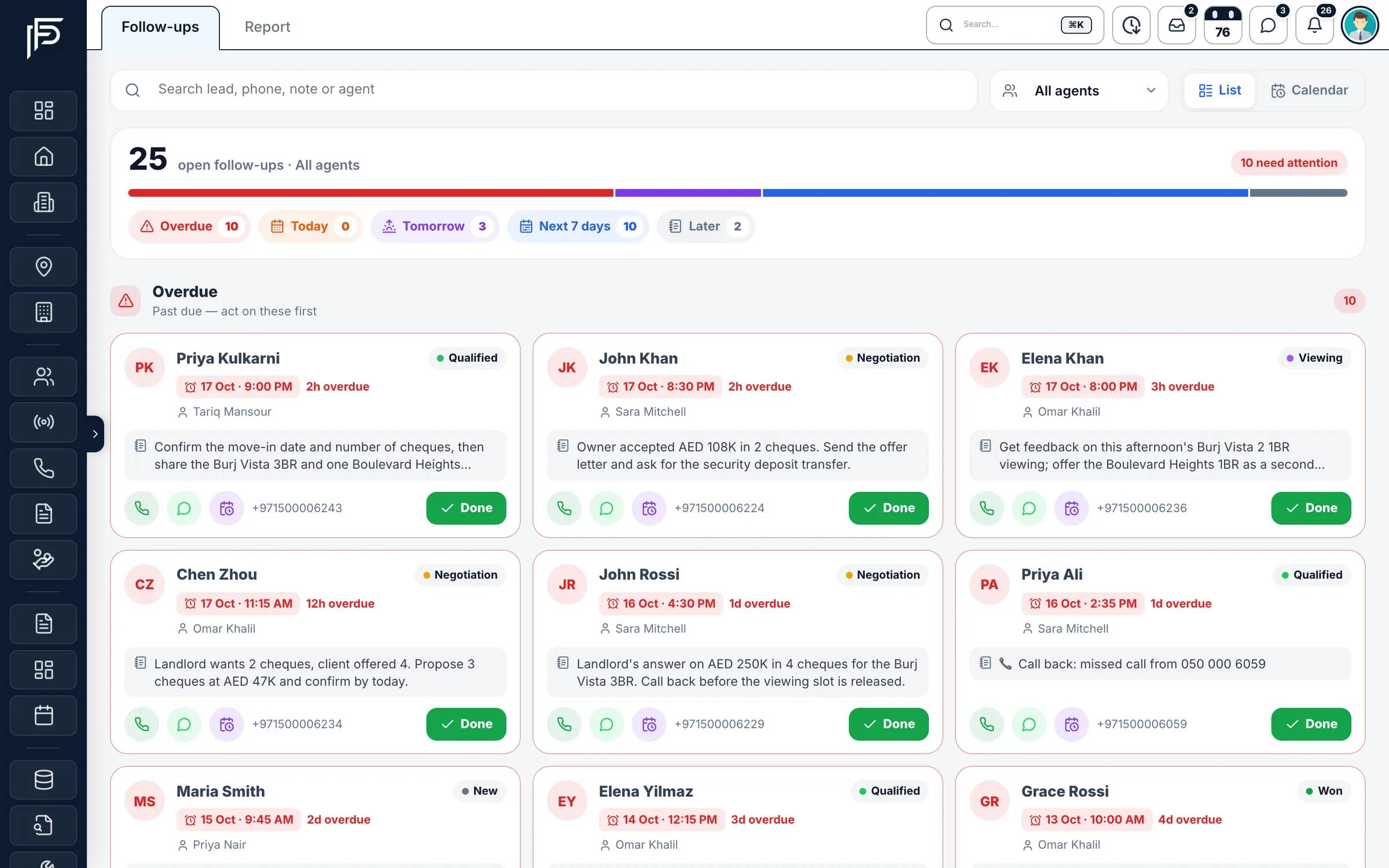
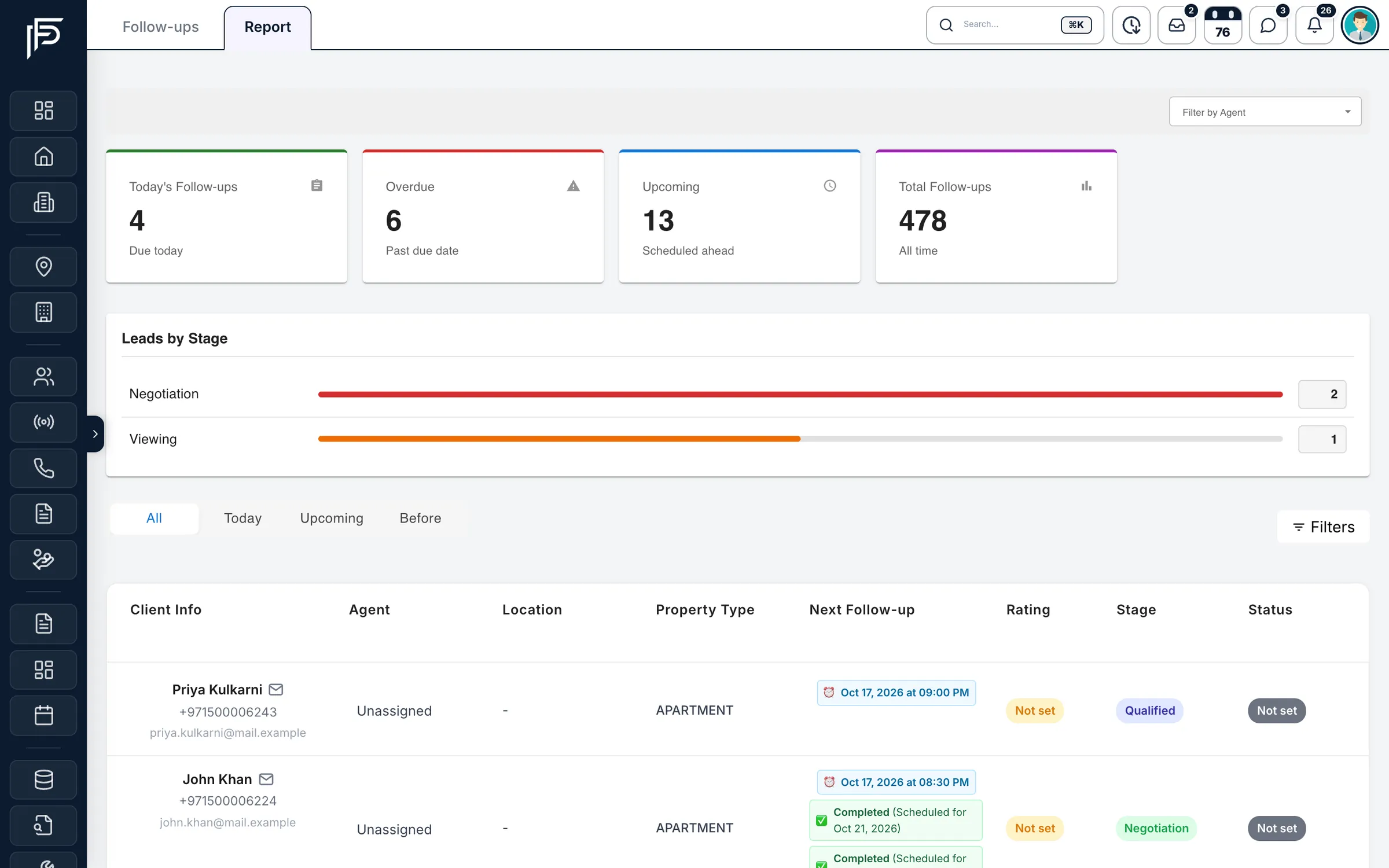
See who follows up, and who doesn't
- Today's, overdue, upcoming and all-time totals
- Leads by stage for the follow-ups in view
- Filter by agent, or switch between today, upcoming and earlier
On the phone
Viewings and reminders between appointments
- Upcoming viewings with the client, agent, date, time, length, status and the client's notes
- Open follow-ups counted at the top, overdue first, then today and tomorrow
- Call, WhatsApp, reschedule or mark done from each follow-up card
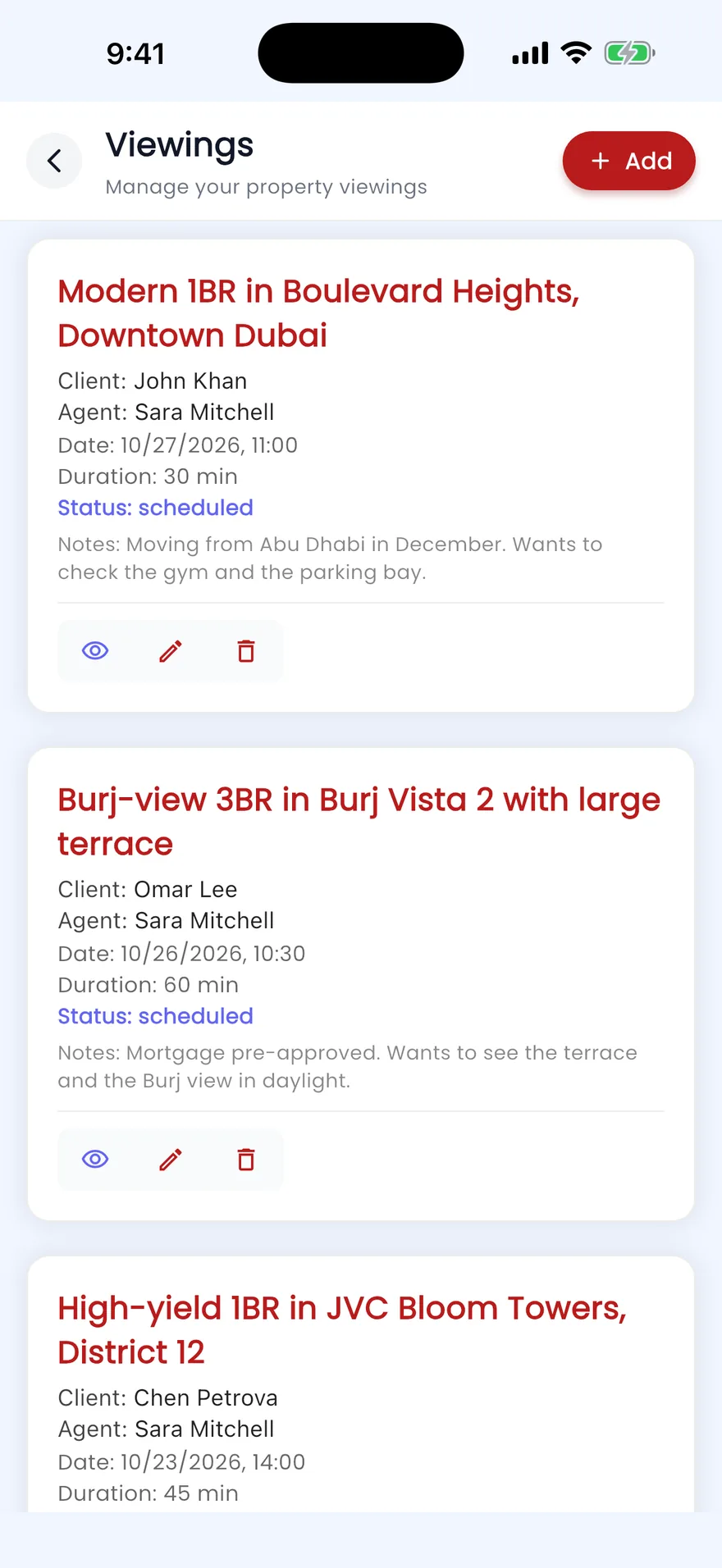
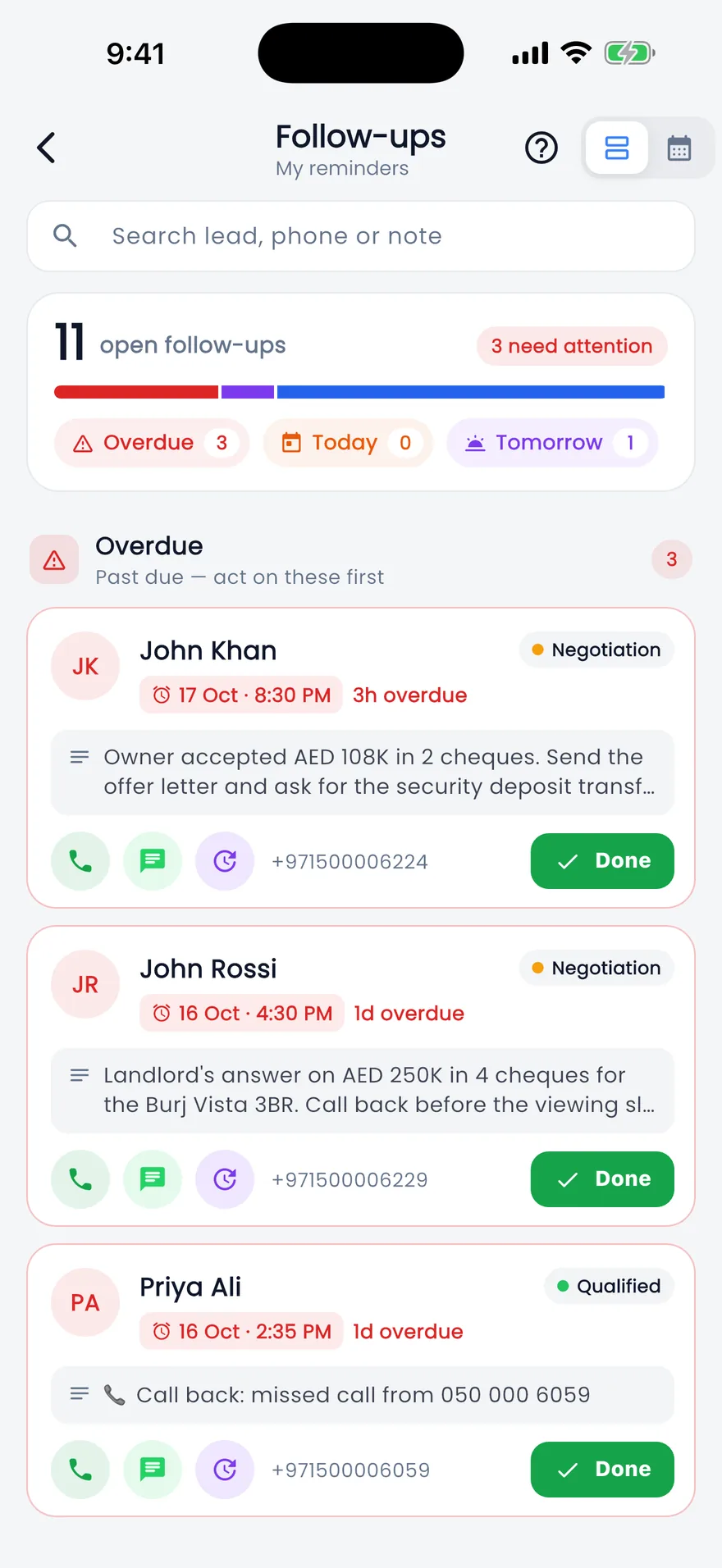
Screens show the Propfusion Demo Realty sample workspace. All people, listings and numbers are fictional.
Calendar & scheduling
Small details that save the follow-up
A default reminder time
Pick a date and the time fills in (10:00 AM unless an admin changes it), so a follow-up is one field.
Note templates
One-tap notes such as “Spoke, interested” or “Wants a viewing” that set the next reminder for you.
Next follow-up prompt
When a lead changes stage, Propfusion offers to book the next reminder for tomorrow in one tap.
Call and WhatsApp from the agenda
Every tap is logged on the lead, so response times and contact counts stay accurate.
Personal or team view
Agents see their own day. Managers switch to any agent, or see the whole team at once.
A calendar view of reminders
In the app, switch My reminders from the list to a calendar to see which days are already full.
Leave on the HR calendar
Annual, sick and unpaid leave sit on the HR calendar, so you know who is out before you book.
Outcomes and proof of visit
Mark a viewing completed, rescheduled, cancelled or a no-show, and add a photo and location from the site.
Feeds the scorecard
Viewings completed, follow-ups logged and overdue follow-ups count toward each agent's KPIs.
FAQ
Calendar and scheduling questions
Can managers see what the team has booked?
Yes. The follow-up agenda switches between your own day, any agent's or the whole team's, the viewings list filters by agent, status and date, and the follow-up report shows today's, overdue and upcoming follow-ups for each agent.
How do reminders work?
Every follow-up has a due date and time (10:00 AM by default unless an admin changes it), and calendar events remind the agent from 15 minutes to a day before. Reminders arrive as notifications on the web and in the app.
Can we record how a viewing went?
Yes. Mark a viewing completed, rescheduled, cancelled or a no-show, and add a photo and location from the site. The next follow-up goes on the lead.
Do viewings and follow-ups count toward KPIs?
Yes. Viewings completed, follow-ups logged and overdue follow-ups count toward each agent's KPI scorecard.
Works with the rest of Propfusion
- Task managementFor the work that isn't a client appointment: listing photos, documents and portal updates.Explore
- Lead managementWhere follow-ups start: every Property Finder, Bayut, Dubizzle and Meta lead in one list.Explore
- Targets & performanceViewings and follow-ups roll up into each agent's monthly KPI scorecard and grade.Explore
Never miss another viewing
Start a free trial and book your first viewing in minutes, or book a demo and we'll show you the calendar with your team's workflow.