Calls inside Propfusion: colleagues, clients and AI
- One-to-one voice and video calls with colleagues
- Connects to Yeastar, 3CX, Exotel, Telnyx or a webhook
- Company-line calls logged on the lead
Three kinds of call
Colleagues, clients and AI, in the workspace you already use
- 01
Call a colleague
Start a one-to-one voice or video call from your direct chat in PropFusion Chat, in the web CRM or in the Propfusion app with the latest app update.
- 02
Call a client on the company line
Connect your own phone system or calling provider. Agents call from the lead in the web CRM, and each company-line call is saved on it.
- 03
Call PropFusion AI
In the web CRM, talk to PropFusion AI live. It can open pages and fill in form fields for you to check.
01 · Colleagues
Voice and video calls with your team
Call a colleague straight from your direct chat in PropFusion Chat. In the web CRM, their incoming call shows on whatever page you have open, so you can answer it without leaving the lead you are working on.
- Mute, turn your camera on or off, or shrink the call to a small window and keep working
- Turn your camera on during a voice call and it becomes a video call
- Share your screen from a desktop browser
- In the app, switch between speaker, earpiece and Bluetooth
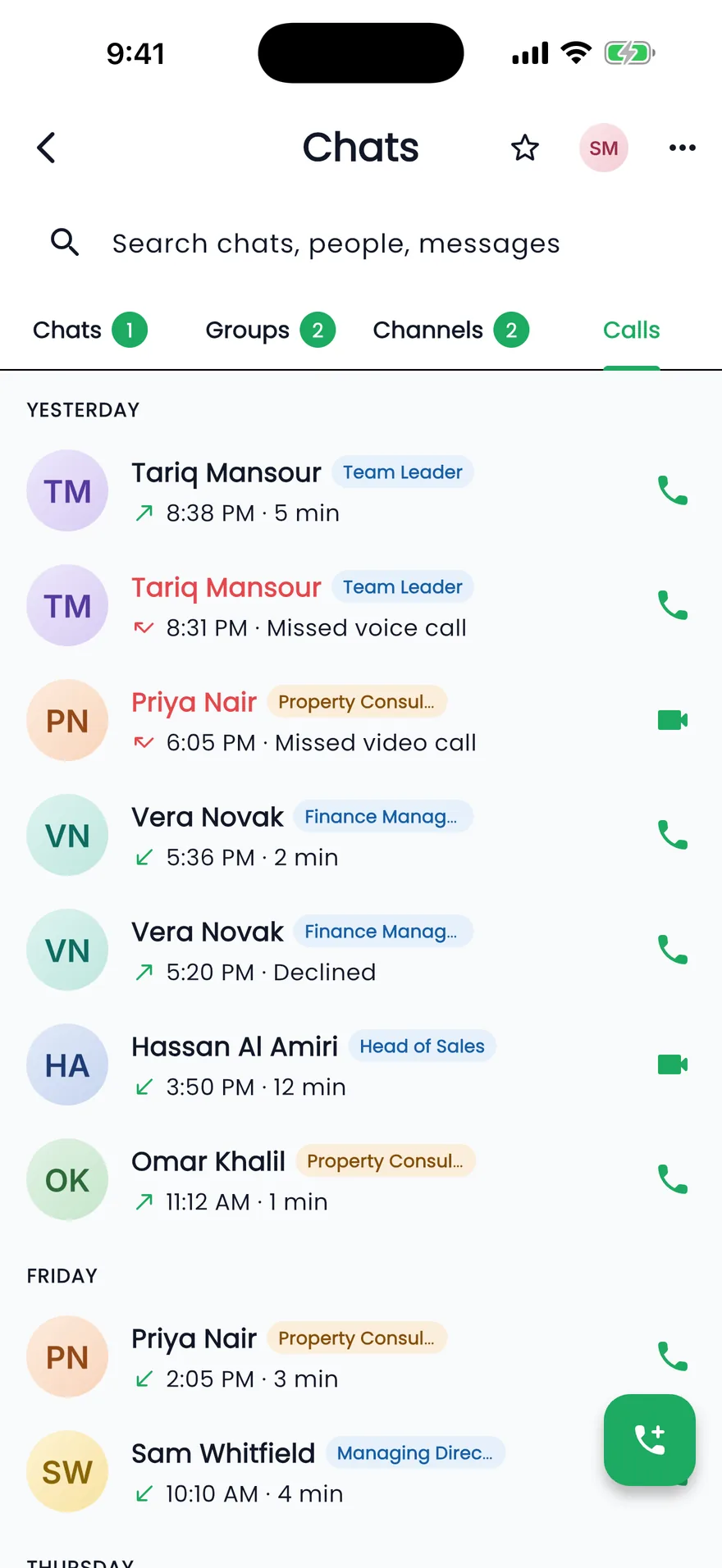
- A Calls tab lists your calls with colleagues, with missed calls in red and one-tap call back
In the web CRM now, and in the app with the latest app update (version 1002.3.99 and later). Calls are one-to-one; group calls and team meetings are coming soon.
02 · Clients
Your company phone line, connected to every lead
Connect the phone system or calling provider your company already uses. The provider account and its numbers stay your own; Propfusion logs each call on the lead, follows up the missed ones and controls who hears the recordings.
- Yeastar
- 3CX
- Exotel (India)
- Telnyx (outside the UAE)
- Any phone system that sends signed call events
5
phone-system connectors
20 s
default talk time before a call counts as connected (you set 5 to 120 s)
10 min
lifetime of each recording playback link
30–730
days to keep recordings, set by you (180 by default)
1Connect
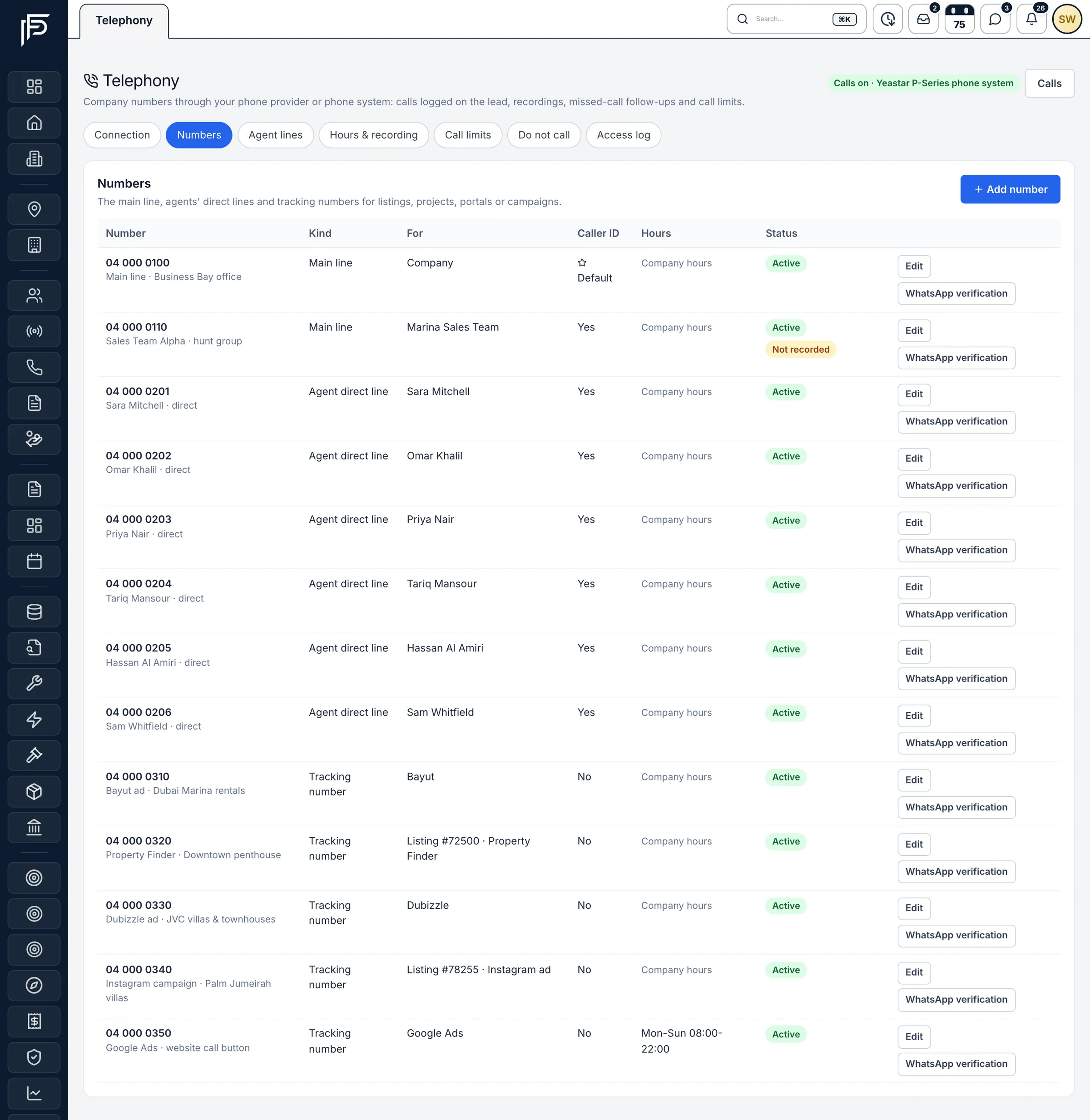
Set it all up on one Telephony page
Admins manage company and tracking numbers, each agent's line, business hours and the recording notice, call limits and a do-not-call list from one Telephony settings page.
2Call
Call from the lead, on the company number
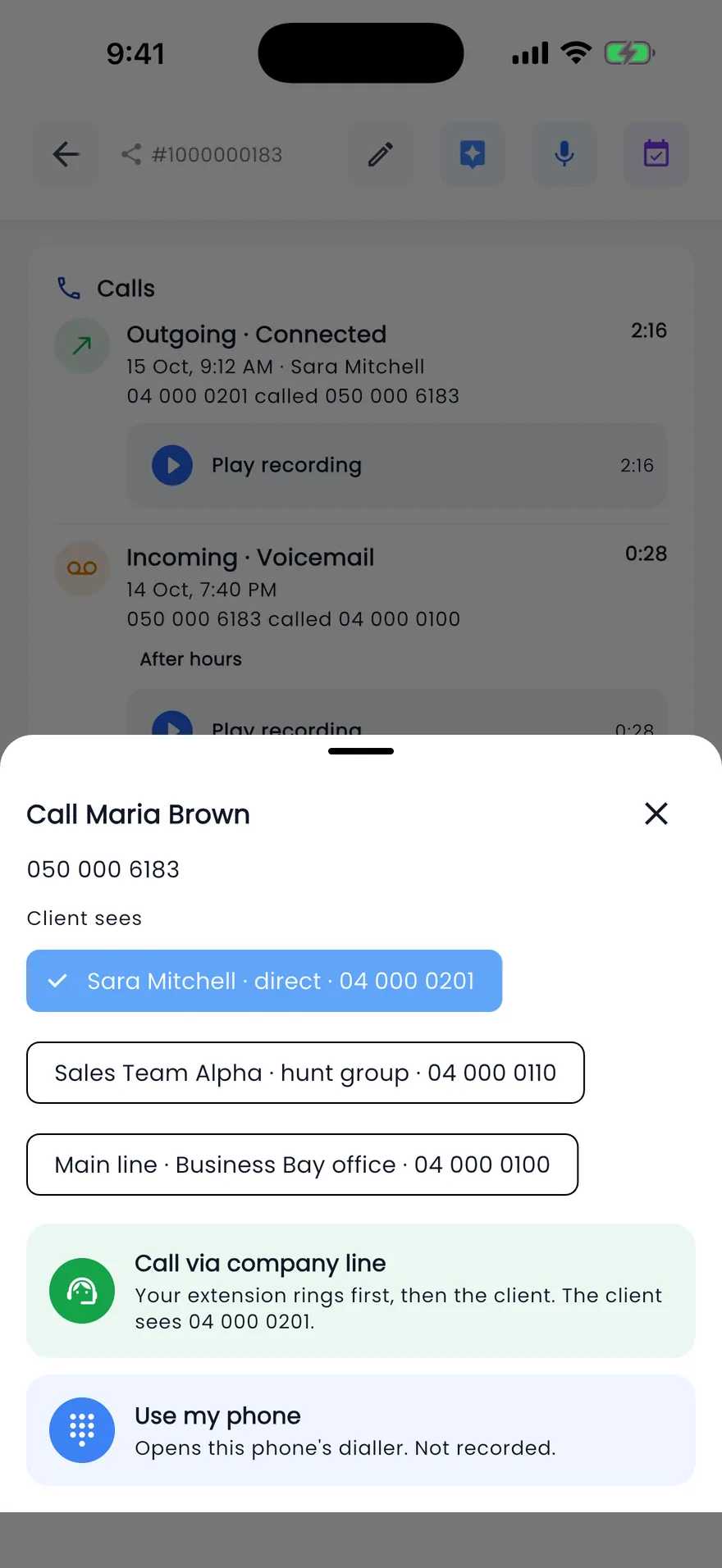
In the web CRM, an agent clicks 'Call via company number' on a lead. Propfusion rings the agent's phone first, then the client, and the client sees a company number instead of the agent's own mobile. The app's call sheet shown here is coming in the next app update.
3Log
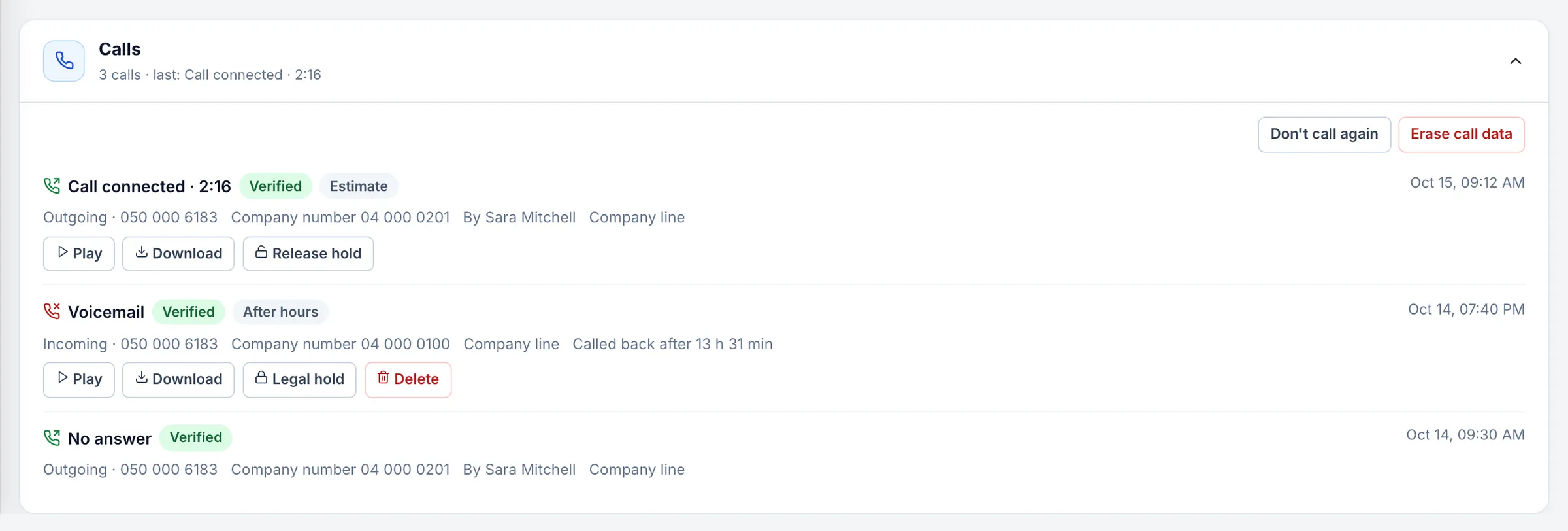
Each call on its lead, and missed calls followed up
Company-line calls, and portal tracking-number calls the portal's API has confirmed, are saved as one record per call on the right lead. A missed call alerts the agents it rang and adds a call-back follow-up for the lead's owner. If nobody calls back in time, the team leader is alerted.
4Listen
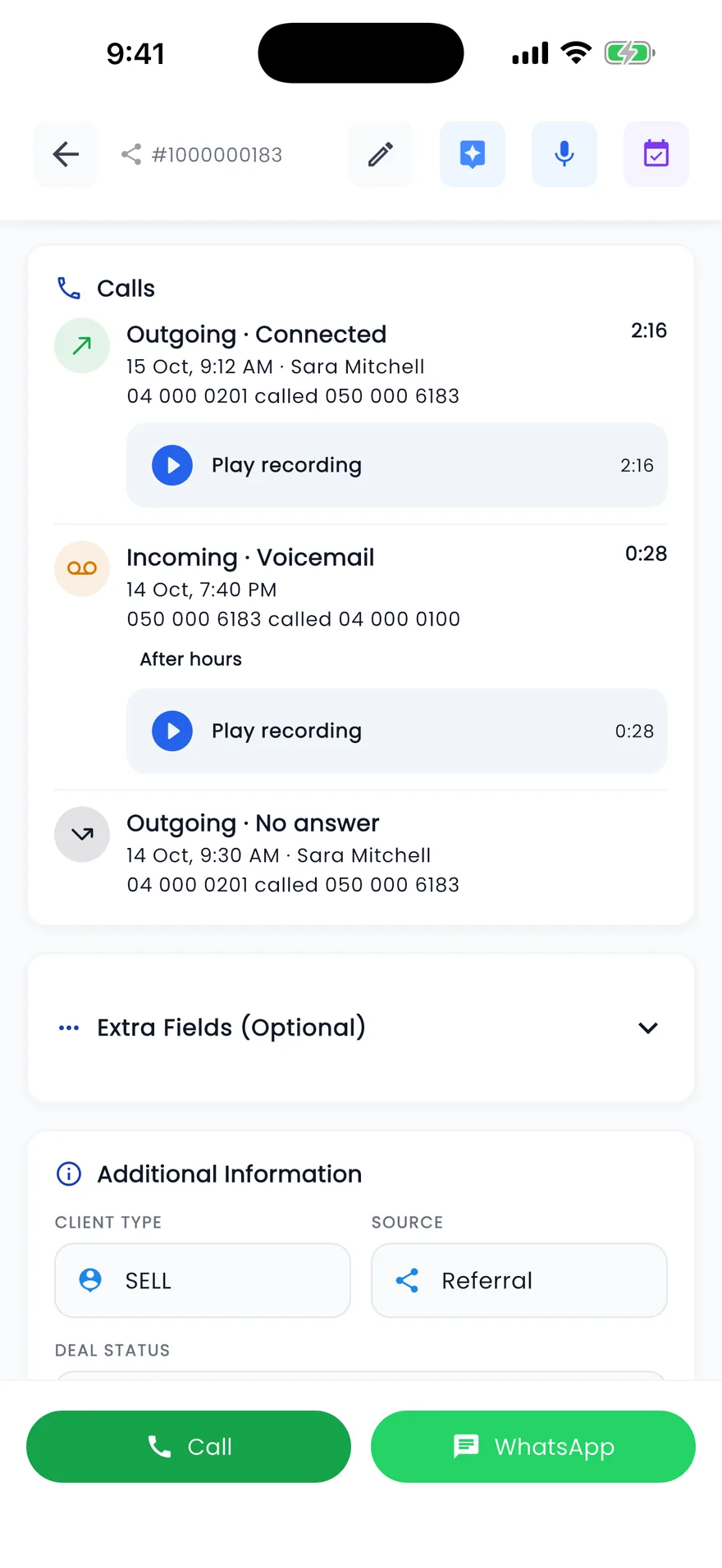
Recordings play on the lead
Recordings made by your phone system, or provided by a portal, are copied into your company's private storage and play on the lead through links that expire after 10 minutes. This works on the web today; the app's Calls card shown here is coming in the next app update.
5Control
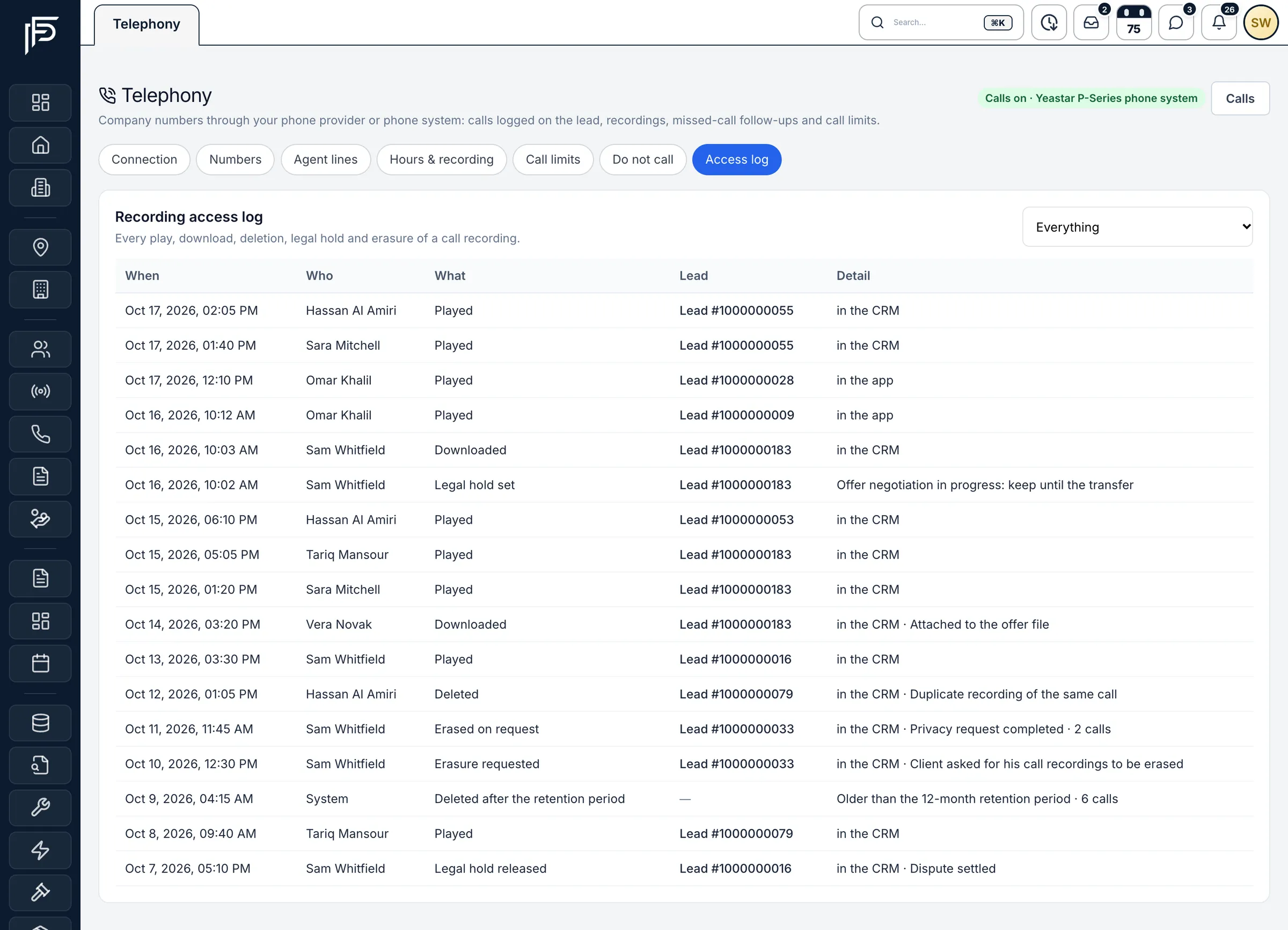
You decide who can listen
Each role is set to hear its own calls, its team's or all calls, and you choose who may download or delete recordings. Every play, download, deletion, legal hold and erasure is logged.
Screens show the Propfusion Demo Realty sample workspace. All people, listings and numbers are fictional.
03 · PropFusion AI
Talk to PropFusion AI, out loud
In the web CRM, click Call PropFusion AI and talk to it live. Ask a how-to question out loud, and it can open the right page, point to the button and fill in the form for you to check.
Web CRM only: the PropFusion AI assistant and its voice calls are not in the mobile app. PropFusion AI uses outside AI providers, which receive the text of your conversation.
Live captions
Captions appear on screen as you talk.
Interrupt by speaking
Cut in at any point simply by talking. No button to press.
It shows you where
During the call it can open pages, point to buttons and fill in form fields for you to check.
It stops before the final click
It never presses save, send, submit or delete buttons on a page. You press those yourself.
Four languages
English, Arabic (UAE), French and Russian.
Speech to text
Whisper, running on PropFusion's own server, turns your speech into text. If it is busy or unavailable, your browser's own speech recognition takes over.
Also included
The practical details
Call figures by agent
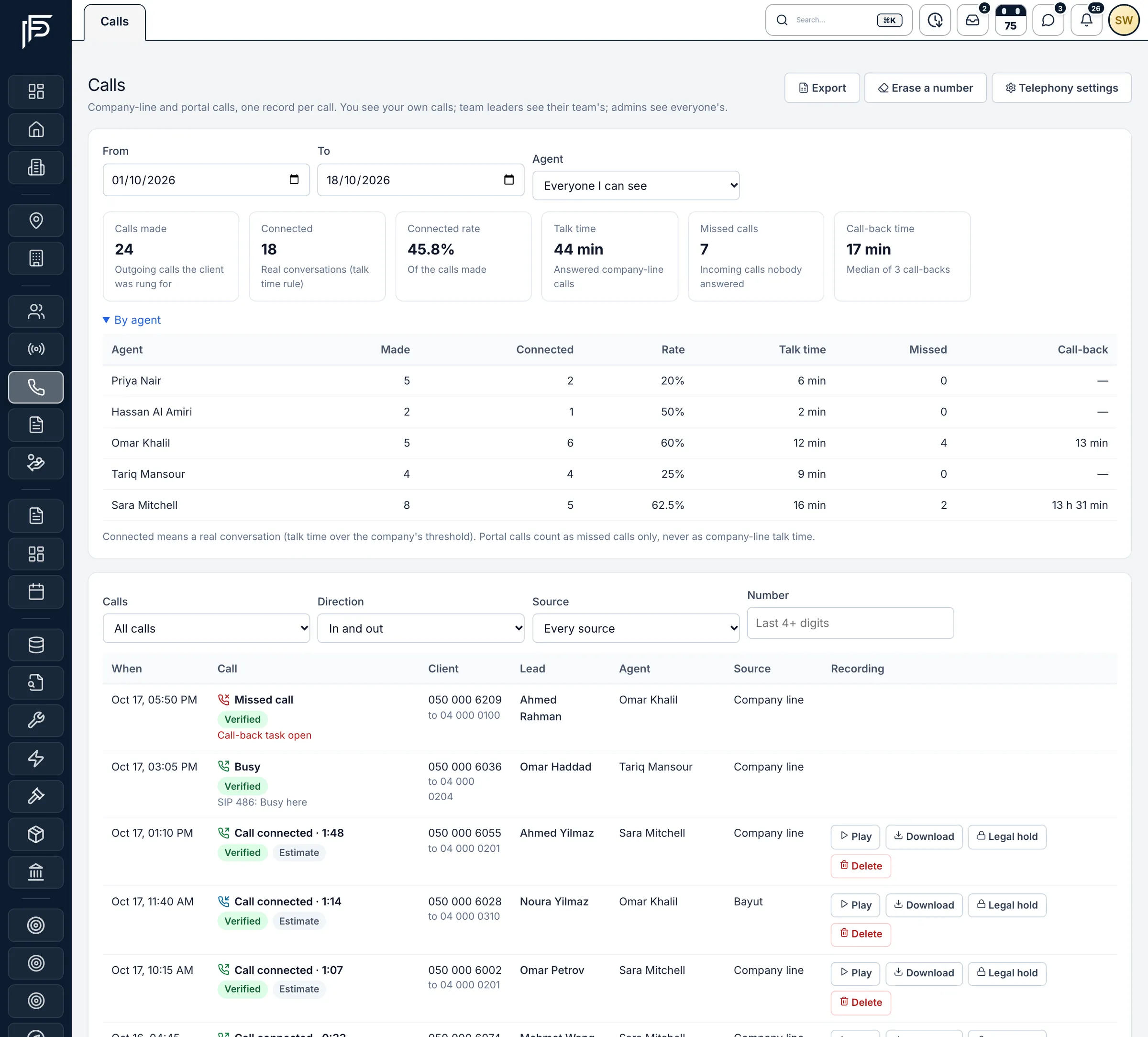
The Calls page shows calls made, connected calls, connection rate, talk time, missed calls and the median call-back time, with a breakdown by agent.
Connected means a conversation
A call counts as connected only when its talk time passes your threshold: 20 seconds by default, adjustable from 5 to 120.
Export to Excel
Export the list of calls to Excel for your own reporting.
Call limits and do-not-call
Set allowed countries, calling hours, and per-lead and per-agent caps, and keep a do-not-call list.
Hours and recording notice
Set your business hours and the recording notice for company lines on the same Telephony page.
Retention and legal hold
Choose how long recordings are kept, from 30 to 730 days (180 by default), and put a recording on legal hold when it must stay.
Staff calls on or off
Calling between colleagues is on by default for every company. A manager with staff-management rights can switch it off under 'Allow calls' in Chat settings.
Calls in the chat history
Each call with a colleague also shows in the chat as a line, such as 'Missed voice call'.
WhatsApp voice calls
On a WhatsApp Business API number, once Meta turns calling on for it, agents can answer and make WhatsApp voice calls in the web WhatsApp inbox, each logged with time, duration and agent. They are not recorded, video is not supported, and availability on UAE networks is limited.
FAQ
Calling questions
Do we need our own phone provider?
Yes. Propfusion connects to the phone system or calling provider your company already has: Yeastar, 3CX, Exotel (for India), Telnyx (for outside the UAE) or any phone system that sends signed call events. The provider or phone system account, and its numbers, are your own.
Can we hold group calls or team meetings?
Not yet. Calls in PropFusion Chat are one-to-one between two colleagues. Group calls and team meetings are coming soon.
Which calls are recorded?
Company-line calls have a recording when your own phone system records them; Propfusion copies that recording onto the lead. Portal recordings are copied in when the portal provides them. Calls between colleagues in PropFusion Chat are not recorded, and neither are WhatsApp voice calls or calls made from a phone's normal dialler.
Who can listen to a recording?
Each role is set to hear its own calls, its team's or all calls, and you choose who may download or delete recordings. Playback links expire after 10 minutes, and every play, download, deletion, legal hold and erasure is logged.
Is calling in the mobile app?
Voice and video calls with colleagues arrive in the Propfusion app with the latest app update (version 1002.3.99 and later). The lead's Calls card and 'Call via company line' are coming in the next app update; on the web, click-to-call and recordings are available now. PropFusion AI voice calls are in the web CRM only.
Does a call count as the agent's response to a new lead?
Not by default. A Call or WhatsApp tap, or a call on the company line, does not stop a lead distribution plan's response timer. The timer stops when the agent adds a note or a follow-up or sets a future reminder, or when the lead's stage changes. Call and WhatsApp taps do count as action in the Response & Health report.
Related features
- Communication toolsWhatsApp on the company number, company lines and alerts, inside the CRM.Explore
- Lead managementPortal leads in one list, shared out to agents by distribution plans with response timers.Explore
- AI-powered insightsLead and note summaries, listing copy, and PropFusion AI for how-to questions in the web CRM.Explore
Bring your calls into Propfusion
Book a live demo to see staff calls, the company line and PropFusion AI calls, or start a free trial.