Lead distribution that keeps every enquiry moving
- Round robin, single pass or pool
- Hand-over on a missed response
- Pool Guard deadlines
How it works
How a new lead finds its agent
Step 1: Set up a plan
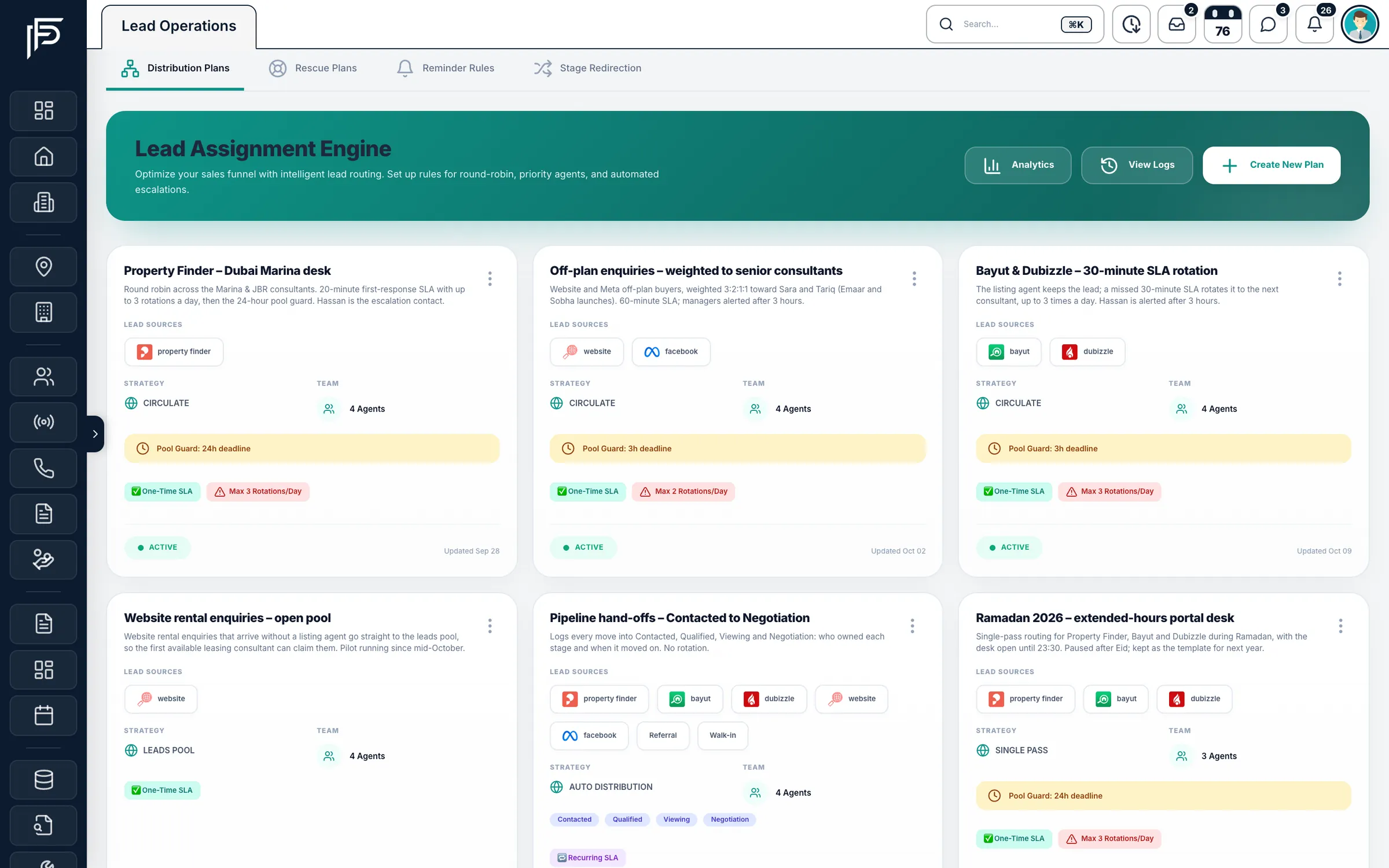
In the web CRM, pick the lead sources, the category and the agents, then choose round robin, single pass or an open pool.
Step 2: The agent is alerted
Each matching lead is assigned at once, or put in the shared pool on a pool plan, and the agent is notified. The response clock runs during the plan's working hours.
Step 3: No response, next agent
Miss the response time and the lead moves to the next agent on the plan. Pool Guard adds a hard deadline on top.
Inside a distribution plan
Plans live in the web CRM under Settings > Lead Distribution, where staff who can manage settings create and edit them.
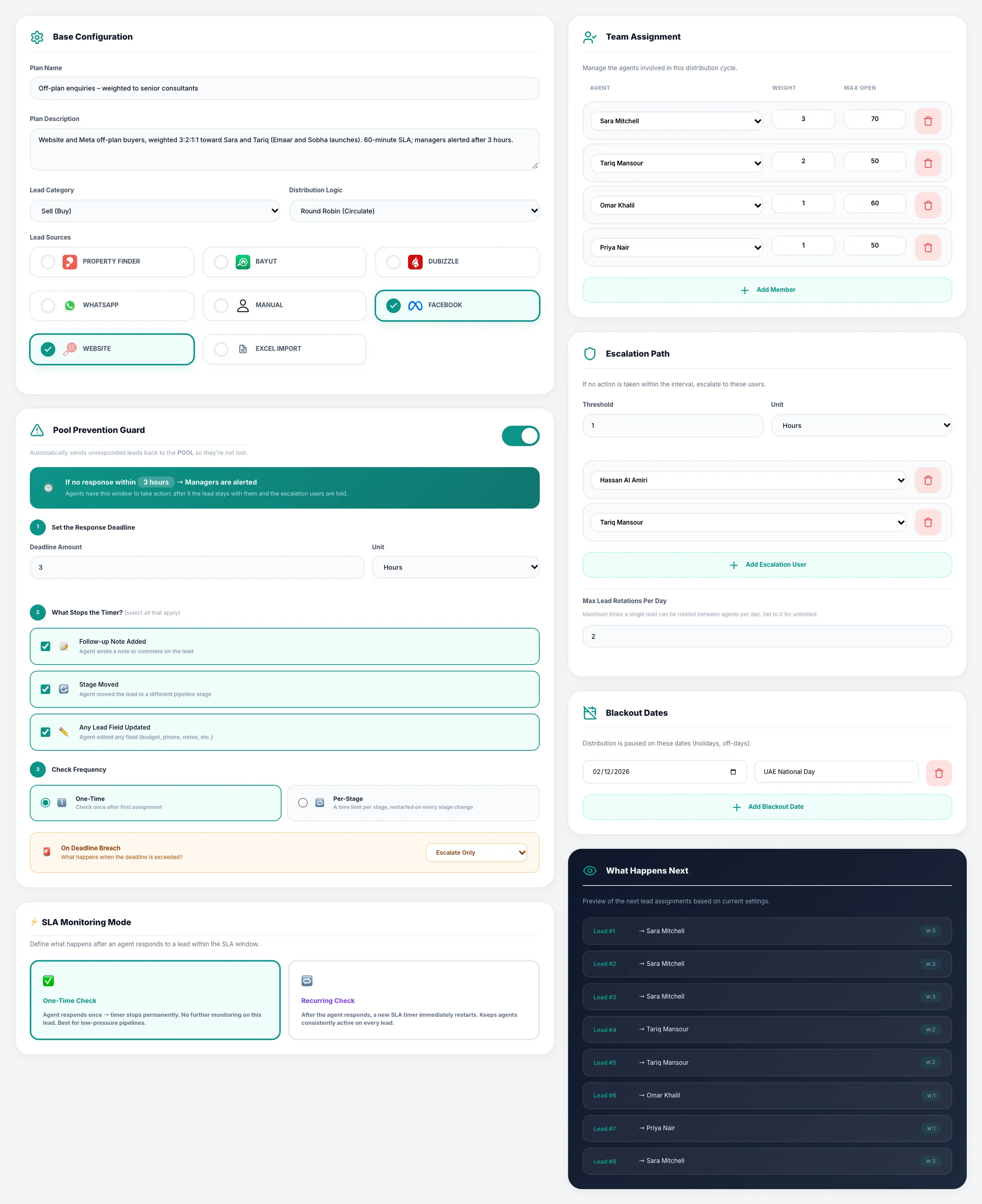
Plan settings
One screen decides who gets the lead
- Max open caps the open leads each agent holds, and agents at their limit are skipped. It is not a daily quota.
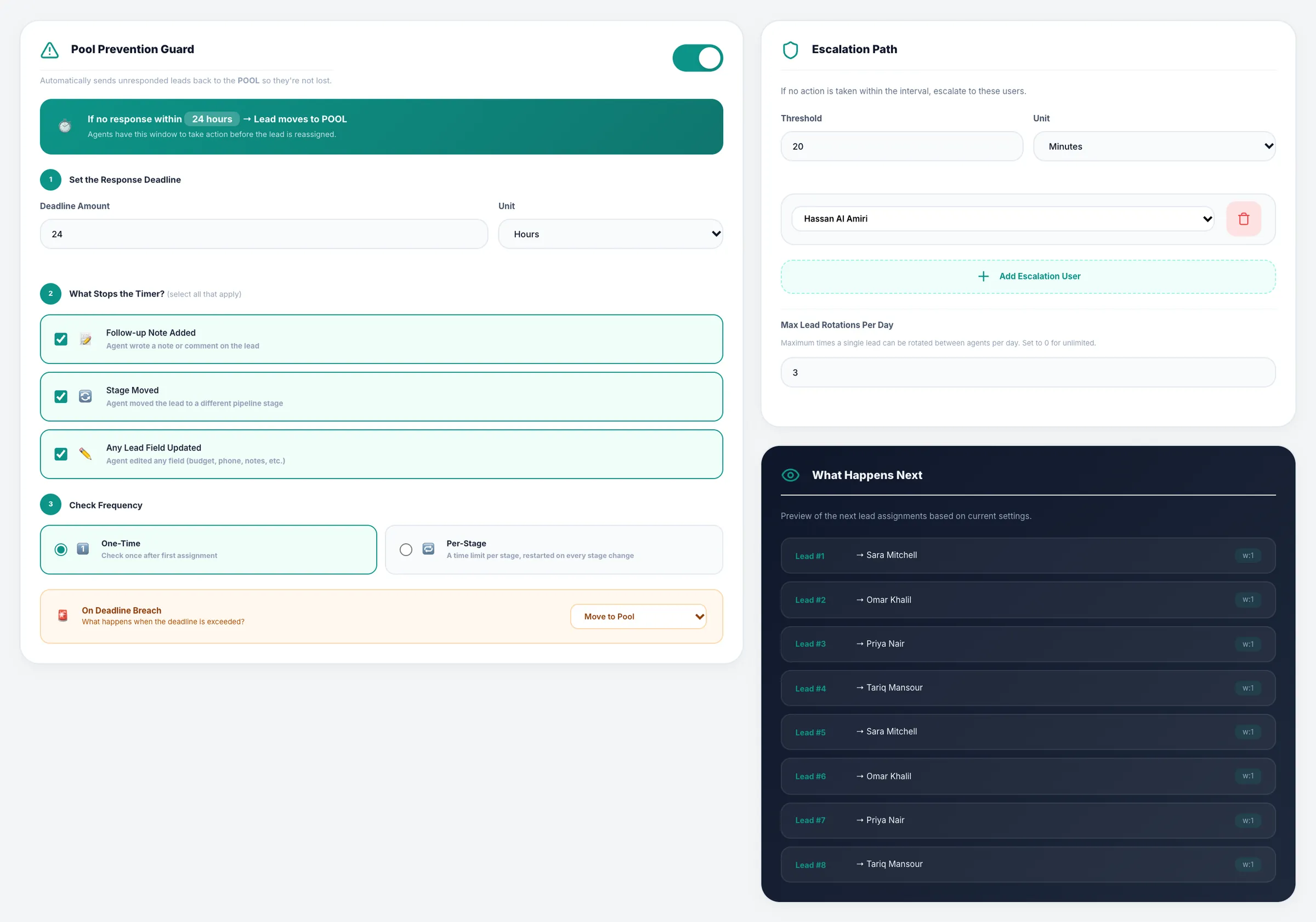
- An escalation path with the response threshold, escalation users and a daily rotation limit
- Pool Guard with a hard deadline, and the option to count any edit to the lead as a response
- Holiday blackout dates, and on a saved plan, What Happens Next showing who gets the next 8 leads
One lead, start to finish
From new enquiry to an agent who answers
Follow one lead through a plan, from the moment it arrives to the reports that follow it. Every screen is the real product.
1Arrive
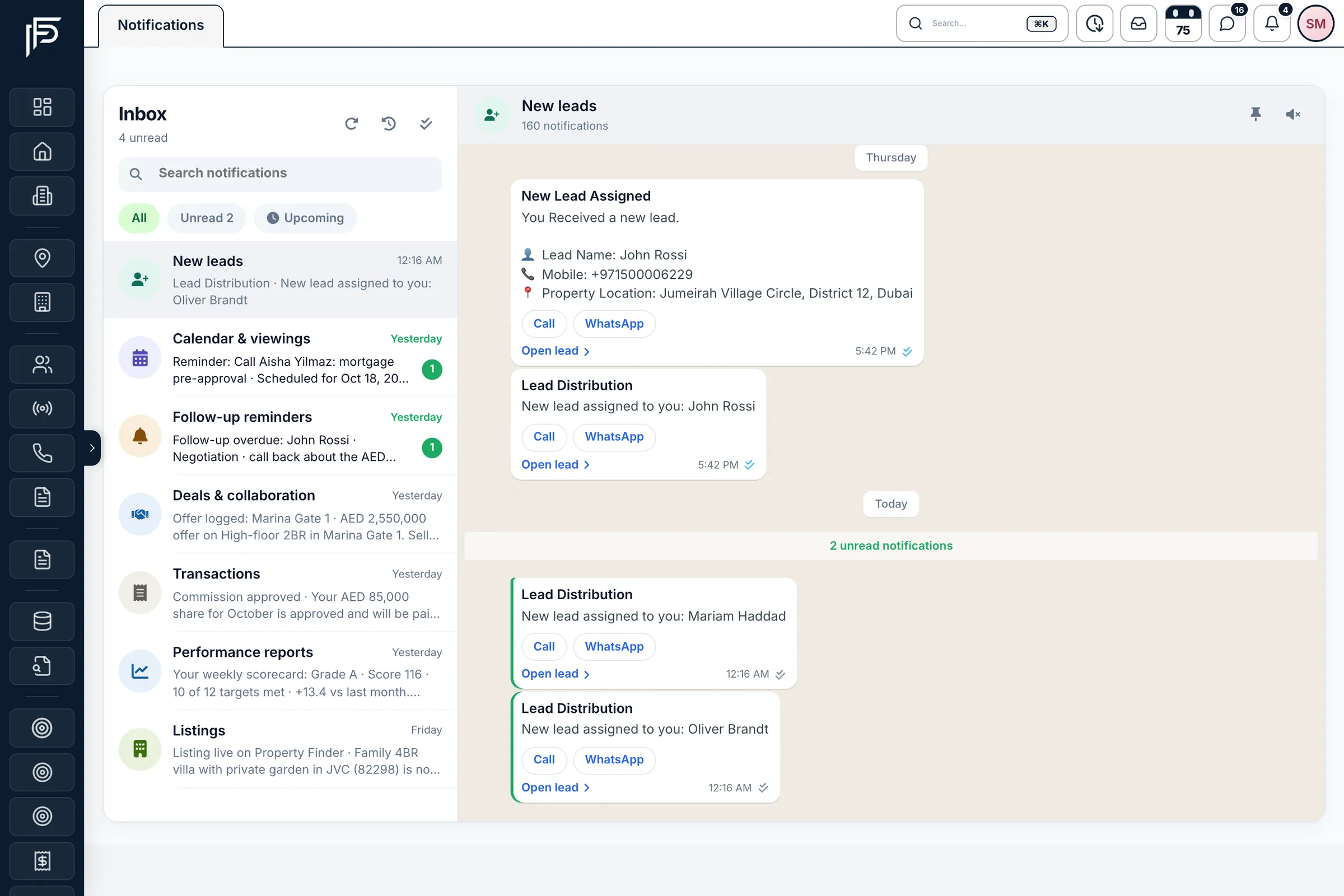
A new lead lands, and the agent hears at once
The lead is assigned the moment it arrives, even out of hours. The agent gets a notification that opens the lead and stays in their inbox, plus a WhatsApp message with a link when their number is saved with its country code.
2Respond
A clear response time, and a clear rule for what counts
Set the response time for each plan in minutes or hours; the clock only runs in working hours. By default it stops when the agent adds a follow-up or a note, sets a future reminder, or the lead's stage changes, and a call or WhatsApp tap alone does not. An admin can also choose to count any edit to the lead.
3Rotate
Missed it? The next agent gets the lead
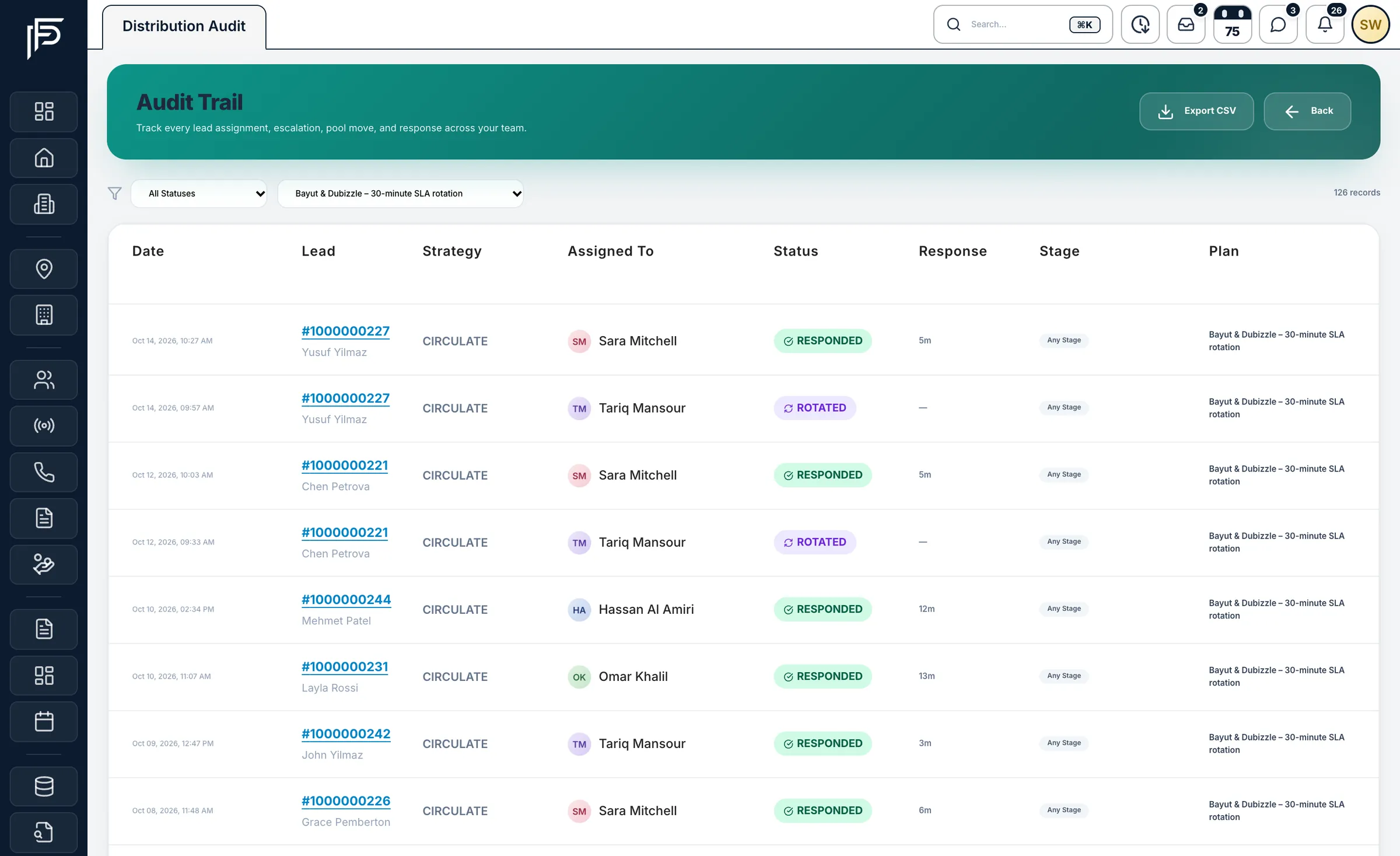
If the agent has not responded in time, the lead moves to the next agent on the plan, who is notified. Propfusion checks once a minute, a daily limit (3 rotations by default) stops one lead going round all day, and the Distribution Audit records every hand-over.
4Pool Guard
A hard deadline that rotations do not reset
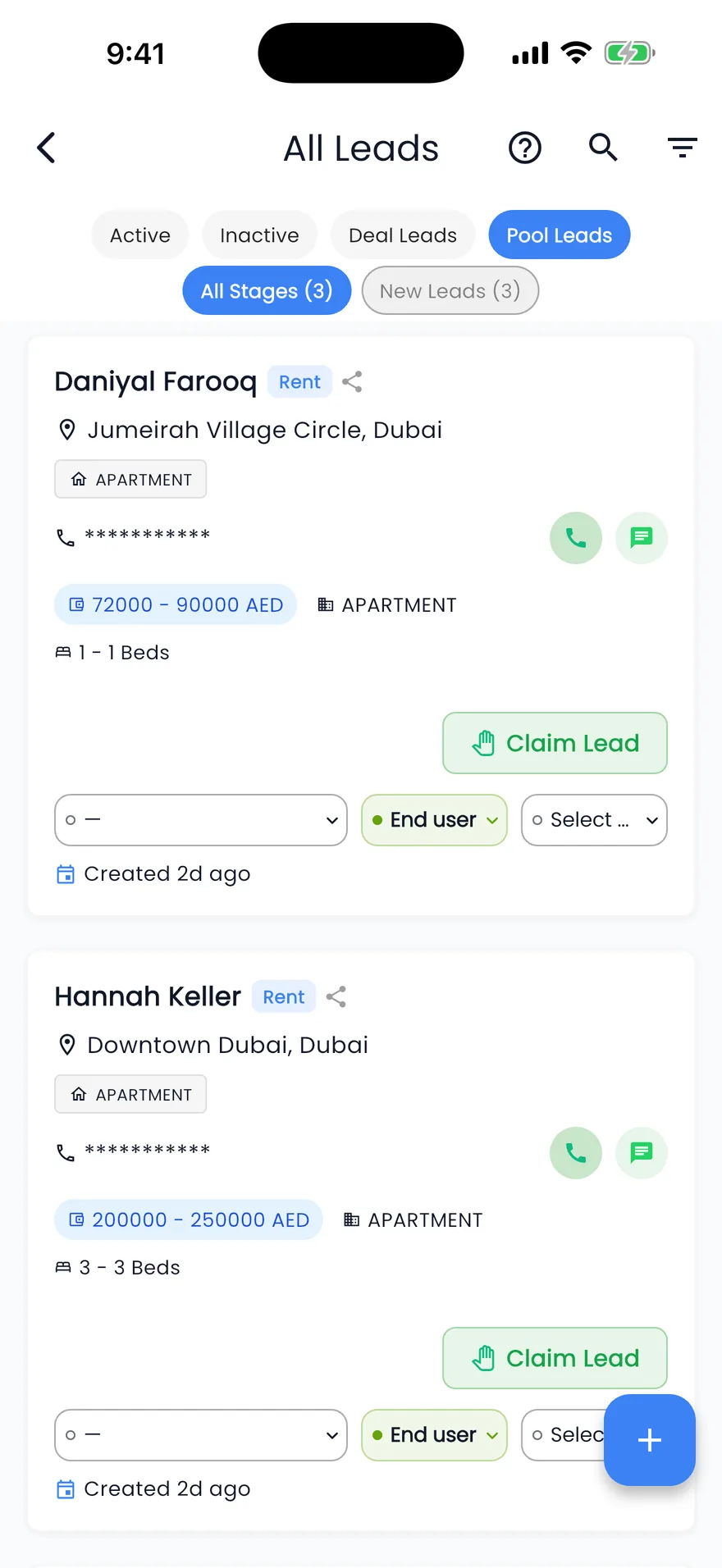
Pool Guard counts from the first assignment, 24 hours unless you change it, and rotations do not reset it. If nobody has responded by then, the lead goes to the shared pool, the escalation users are alerted, and agents claim it on the web or in the app.
5Report
See where leads stall, and who answers fastest
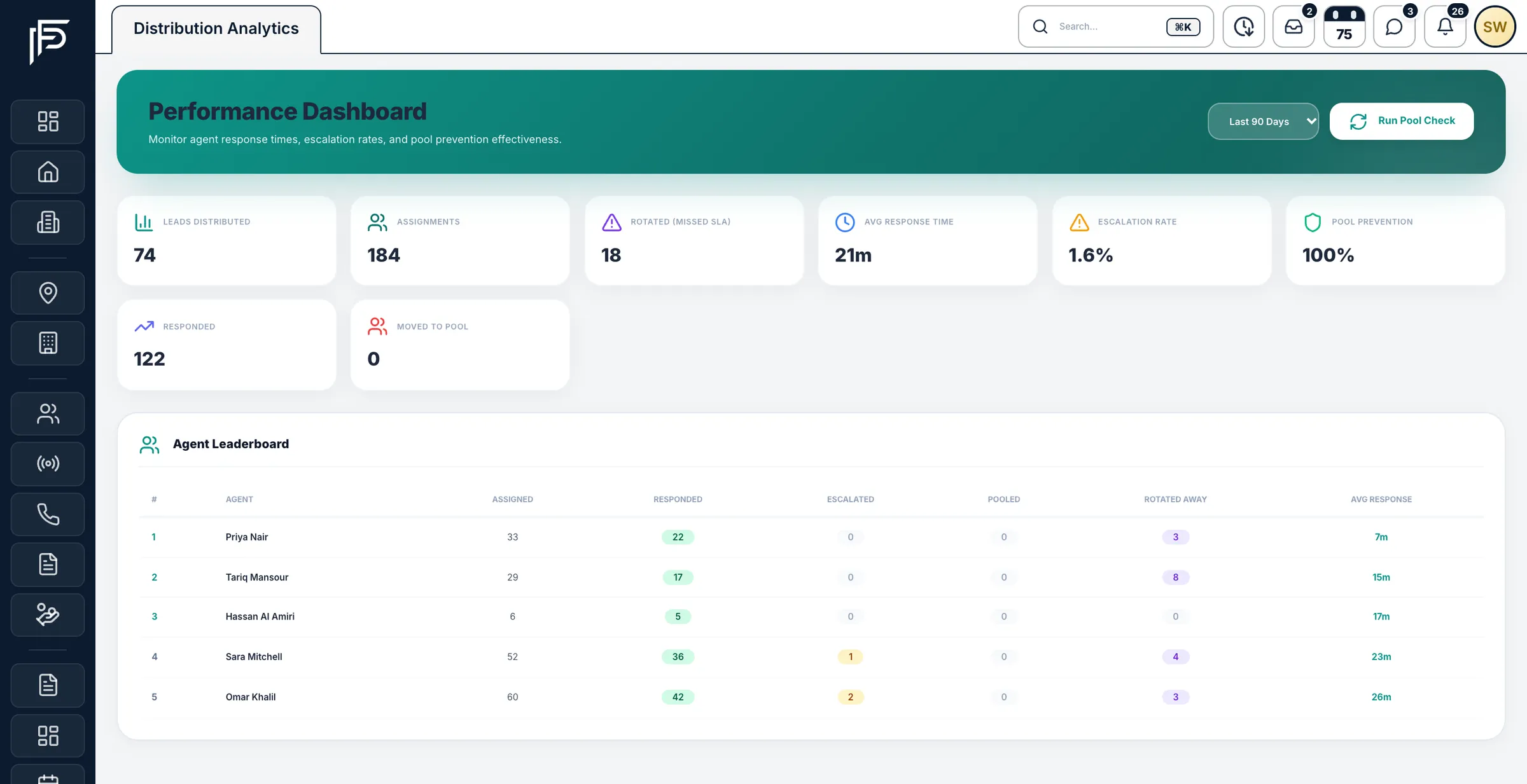
Distribution Analytics covers the last 7, 30 or 90 days: leads distributed, rotations after a missed response time, average response time, escalation and pool-prevention rates, and an agent leaderboard sorted by fastest average response.
Screens show the Propfusion Demo Realty sample workspace. All people, listings and numbers are fictional.
Defaults
Where a new plan starts
30min
Default response time on a new plan, set in minutes or hours.
3a day
Default rotation limit for one lead. Set it to 0 for no limit.
24hours
Default Pool Guard deadline, counted from the first assignment.
60sec
How often Propfusion checks for missed response times and deadlines.
Reports that show who answers, and who lets leads slip
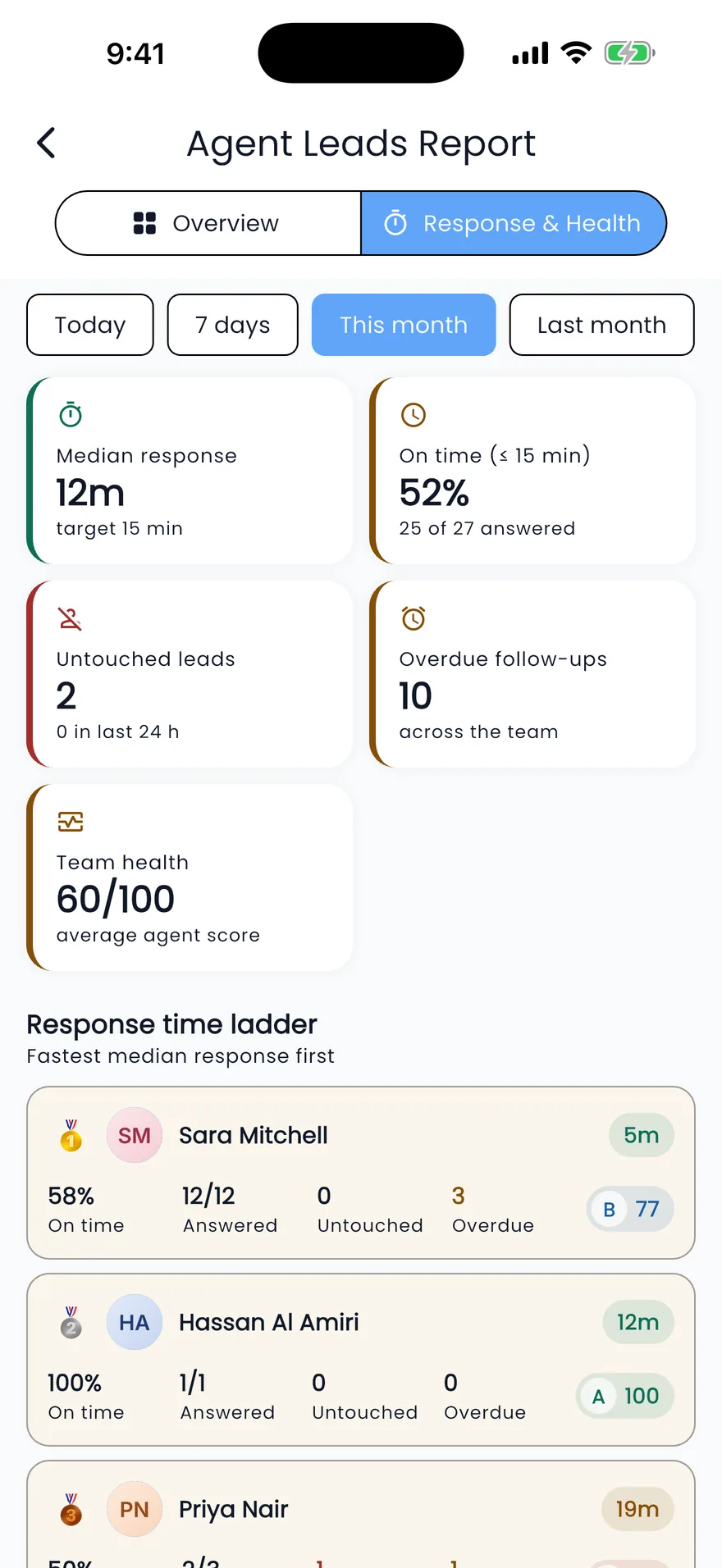
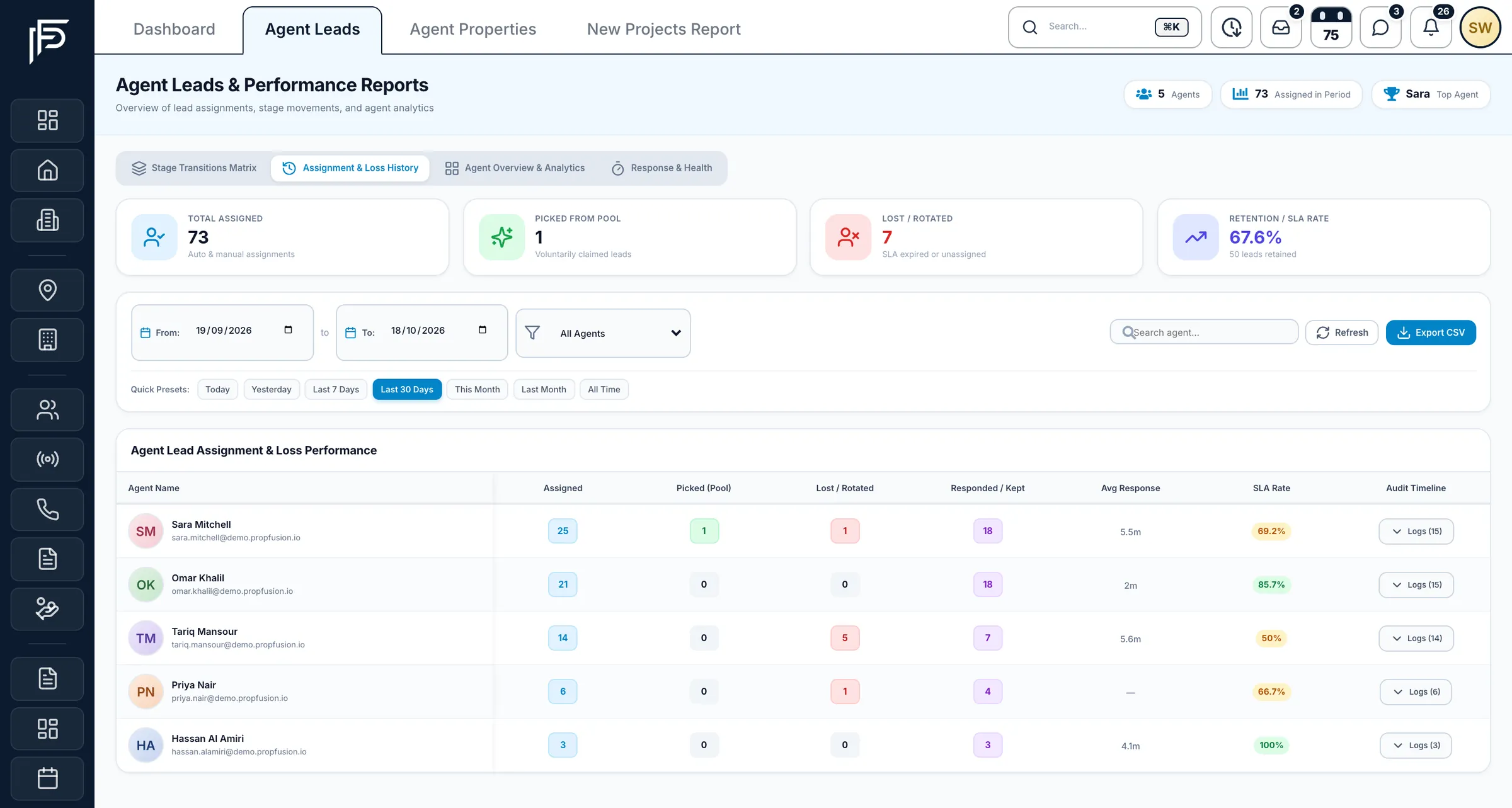
The Agent Leads report follows every assignment back to the agent, so coaching starts from facts rather than impressions.
Assignment & Loss History
Who kept their leads, and who let them go
- Assigned, picked from the pool, lost or rotated, and kept, per agent
- Export the table to CSV
- Managers allowed to view all reports see every agent
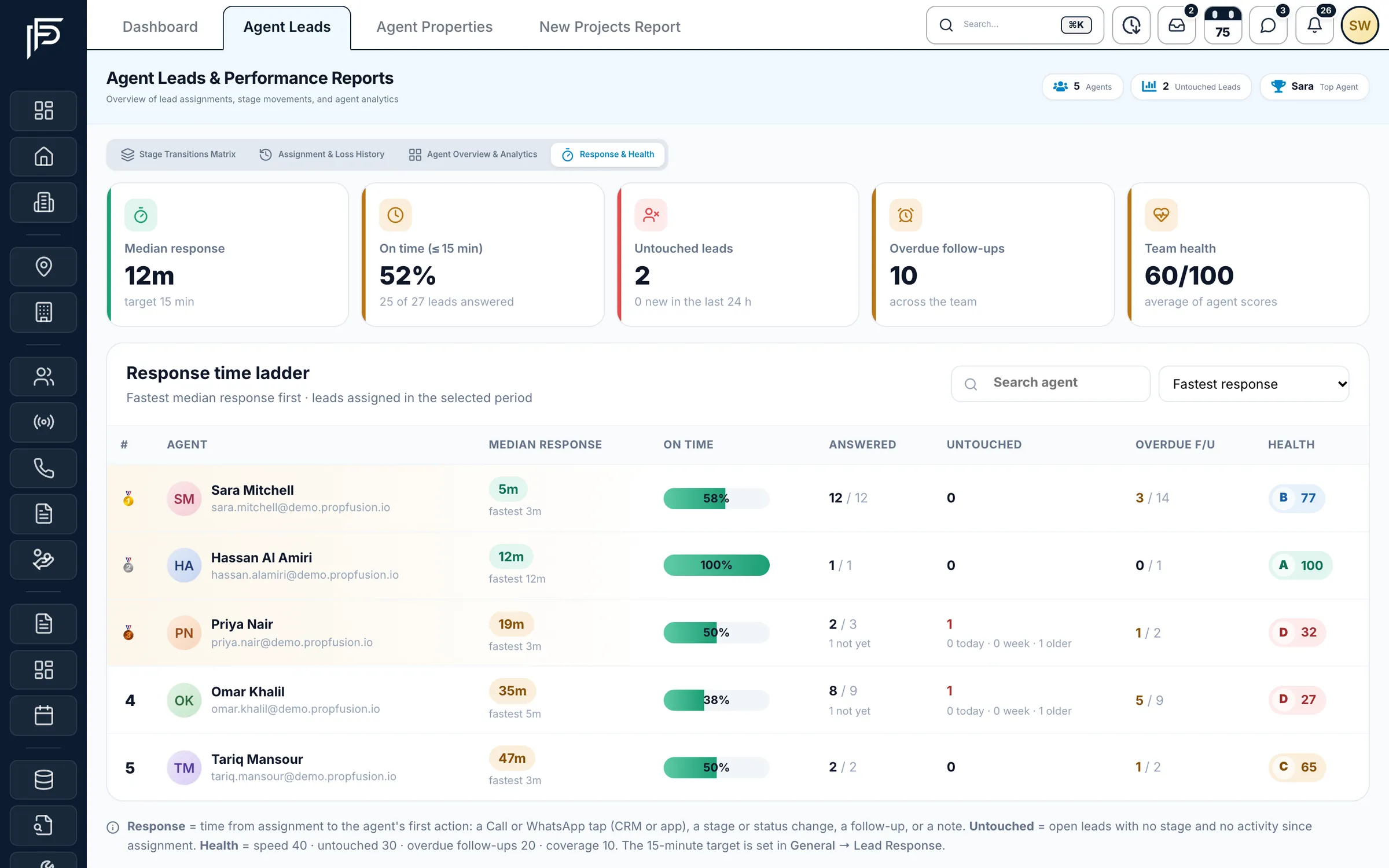
Response & Health
Response times against your own target
- A health score from speed (40), untouched leads (30), overdue follow-ups (20) and coverage (10)
- Grades: A from 85, B from 70, C from 50, otherwise D
- In this report a Call, WhatsApp or email tap counts as action; the rotation timer keeps its own rules
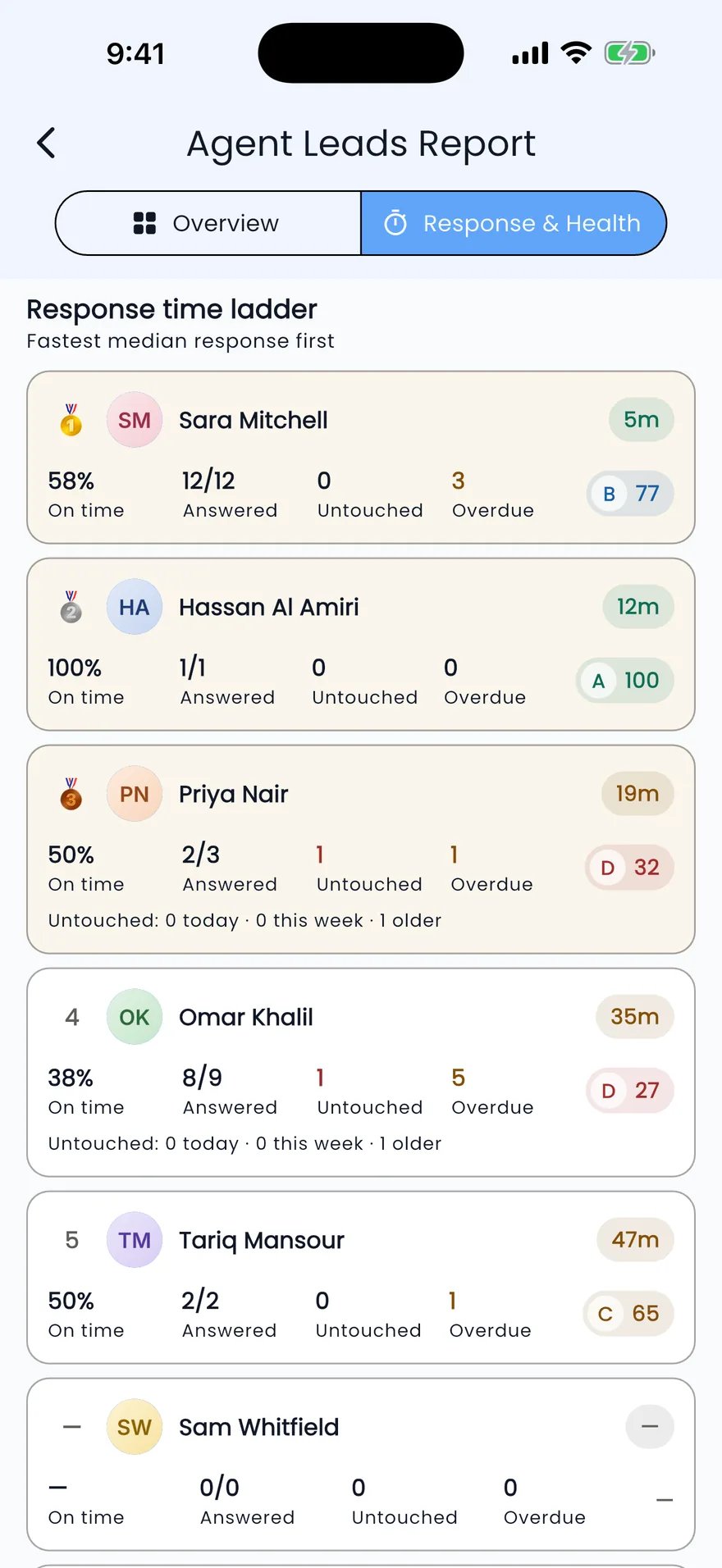
In the app
Lead alerts, pool leads and response times on the phone
- Alerts for new and rotated leads that open the lead
- Claim Lead on the cards in the Pool Leads tab
- With report access, agents see their own figures; people allowed to view all reports see the whole team
Also included
The details that keep distribution fair
Sub-sources and sub-communities
Narrow a plan to one campaign or one sub-community. When a general plan and a narrower plan both match, the narrower one is used.
Working hours and blackout dates
Working hours or 24/7, working days and holiday blackout dates for each plan, in your company's timezone (Dubai unless changed).
Open pool plans
A pool plan puts each new lead in the shared Pool Leads list and alerts every agent on the plan, who claim leads on the web or in the app.
Escalation users
With Pool Guard off, a lead that has gone round the plan or hit the daily limit goes to the first active escalation user, and all of them are alerted.
The listing agent first
With Prioritize Property-Agent matching on (the default), a lead tied to a listing's agent stays with that agent, who is still held to the response time.
Repeat clients, same agent
Switch on Assign Repeat Leads to send a new lead whose phone number matches an existing lead to the agent on that contact's newest lead.
Watched stages
When a lead enters a stage the plan watches, its agent keeps it but gets a response timer. Pool Guard's Per-Stage check gives each stage its own limit.
One-time or recurring checks
One-Time stops checking after the first response. Recurring starts a new response timer each time the agent responds, so the agent has to keep working the lead.
Rescue plans and reminder rules
On a schedule, move idle leads with no follow-up to other agents, to the pool or back through the matching plan, and alert agents about open leads with no activity.
Questions
Lead distribution questions
- How does Propfusion decide which agent gets a lead?
- A distribution plan matches the lead by source, sub-source, sub-community and category (Sell, Rent, Enquiry or all), then shares it out. Round robin gives leads to the plan's agents in turn, and a weight of 2 gets an agent twice as many. Single pass gives each lead to the first agent on the list who is active and below their Max open limit. A pool plan puts the lead in Pool Leads and alerts every agent on the plan to claim it.
- What counts as a response?
- By default, the response clock stops when the assigned agent adds a follow-up or a note or sets a future reminder, or when the lead's stage changes. A call or WhatsApp tap on its own does not stop it. An admin can also choose to count any edit to the lead.
- What happens to leads that arrive out of hours?
- They are still assigned at once, but the response clock only runs during the plan's working hours, in your company's timezone. Each plan also has its own working days and holiday blackout dates.
- What if nobody responds at all?
- Pool Guard sets a hard deadline, 24 hours by default, counted from the first assignment, and rotations do not reset it. When it passes, the lead goes to the shared pool and the escalation users are alerted. With Escalate Only, the lead stays with its agent and the escalation users are alerted instead. Separately, a daily limit (3 rotations by default, 0 for no limit) caps how often one lead is rotated.
- Can agents work distributed leads from their phone?
- Yes. In the Propfusion app, agents get the lead alerts and claim pool leads. The latest app update adds Agent Leads & Response in Profile, where staff with report access see response times and health grades. The plans themselves are set up in the web CRM under Settings > Lead Distribution, by staff who can manage settings.
- How do managers check that plans are working?
- Staff who can manage settings open Distribution Analytics, with rotations, average response time, escalation rate and an agent leaderboard for the last 7, 30 or 90 days, and the Distribution Audit, which lists every assignment with its status and response time, filtered by status or plan. The Agent Leads report shows who kept, lost or picked up leads.
Works hand in hand with
- Lead managementProperty Finder, Bayut, Dubizzle, Meta, website and WhatsApp leads in one list, each marked with its source.Learn more
- Pipeline managementName your own stages and move leads through them, from new enquiry to deal.Learn more
- Agent KPIs and targetsMonthly targets for each agent, scored from their work in the CRM.Learn more