Integration · E-mail
Send CRM e-mails from your own company's mail account
Propfusion sends its e-mails to your staff, owners, tenants and clients in your company's name, and replies come back to your company. Connect your own mail server by SMTP or Amazon SES and the e-mails also go out from your own address and domain; without one, they carry your company's name from Propfusion's verified sender.
7 days free · No card needed
- Your company's name
- SMTP or Amazon SES
- Replies come to you
Updated · Checked with AI tools against the product and official sources · How this page is made
At a glance
- Providers
- Your own SMTP server, or Amazon SES
- Sender name
- Your company's name exactly as you wrote it, with no “via Propfusion”. Replies go to your company
- Your domain
- Your own address and domain appear in From when the e-mail goes through your company's own mail server, so it passes DMARC checks
- Without a server
- E-mails still carry your company's name, sent from Propfusion's own signed sender address
- Automatic e-mails
- Every e-mail the CRM sends on its own in one list, with a switch per type, a pause per person and a 90-day log
- Campaigns
- E-mail campaigns with a one-click unsubscribe link; unsubscribed and bounced addresses are skipped
- Needed for
- Tenant and owner portal invitations, and client reminders for off-plan instalments
Who the e-mail is from
What your clients see in their inbox
Two set-ups, one rule: the e-mail always speaks for your company.
| What | With your mail server | Without one |
|---|---|---|
| Sender name | Your company's name | Your company's name |
| From address | Your own address, on your own domain | Propfusion's signed sender address |
| Replies go to | Your mail account's reply-to, else your company e-mail | The e-mail address in your company settings |
| Your domain in From | Yes | No: without your server it would fail DMARC checks |
Set-up
Connect your mail and take control of what is sent
Company details first, then your mail server, then the e-mails themselves.
Add your company details
Enter your company's name, e-mail and website in the company settings. The name becomes the sender name on every e-mail, and the e-mail address receives replies when no mail server is connected.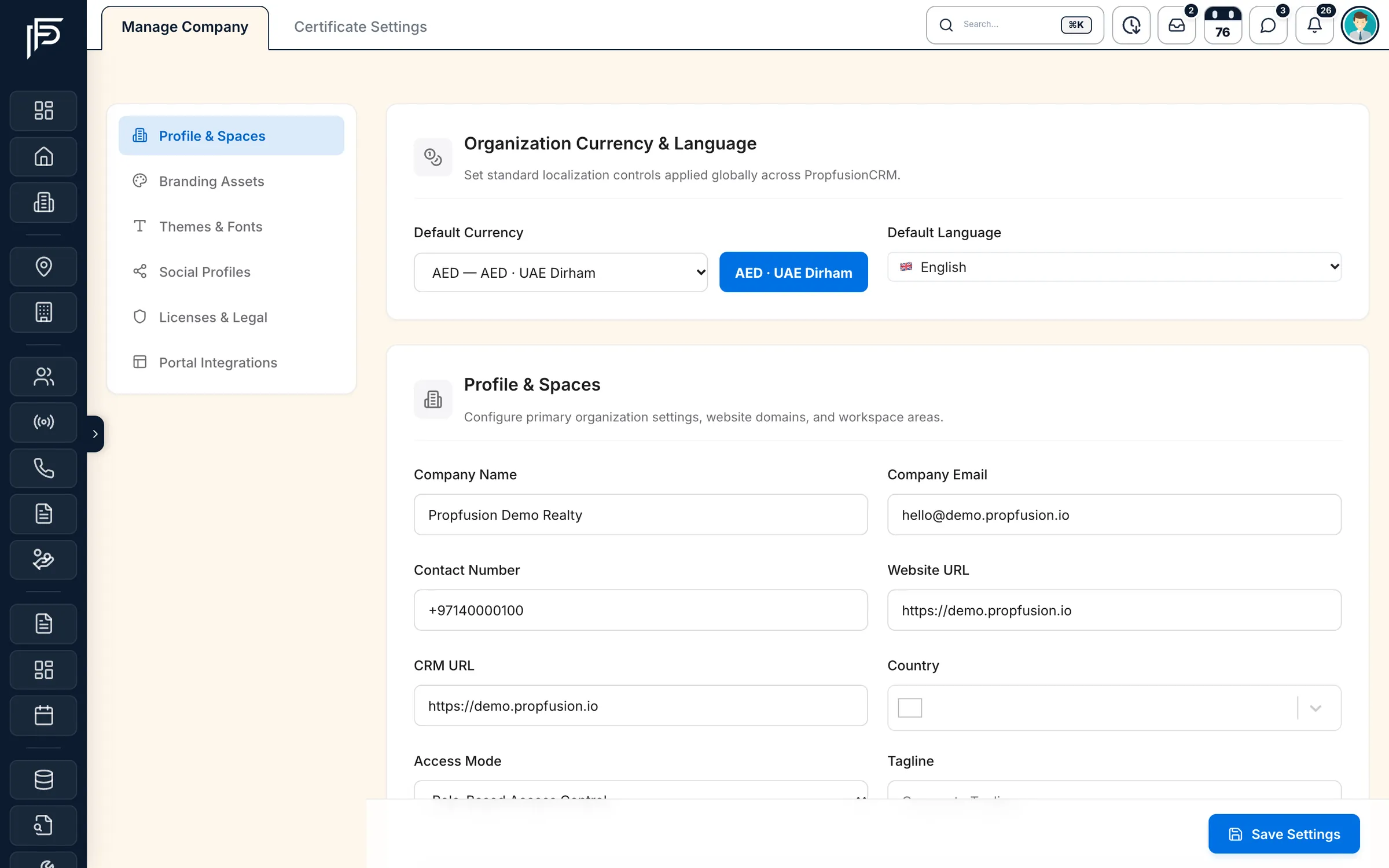
Company name, e-mail, website and branding in one place. Connect your mail server
In the SMTP settings, choose SMTP and enter your mail server's details, or choose Amazon SES. With SES, send from a domain you have verified in your AWS account. From then on the CRM's e-mails leave from your own address.Write campaigns and templates
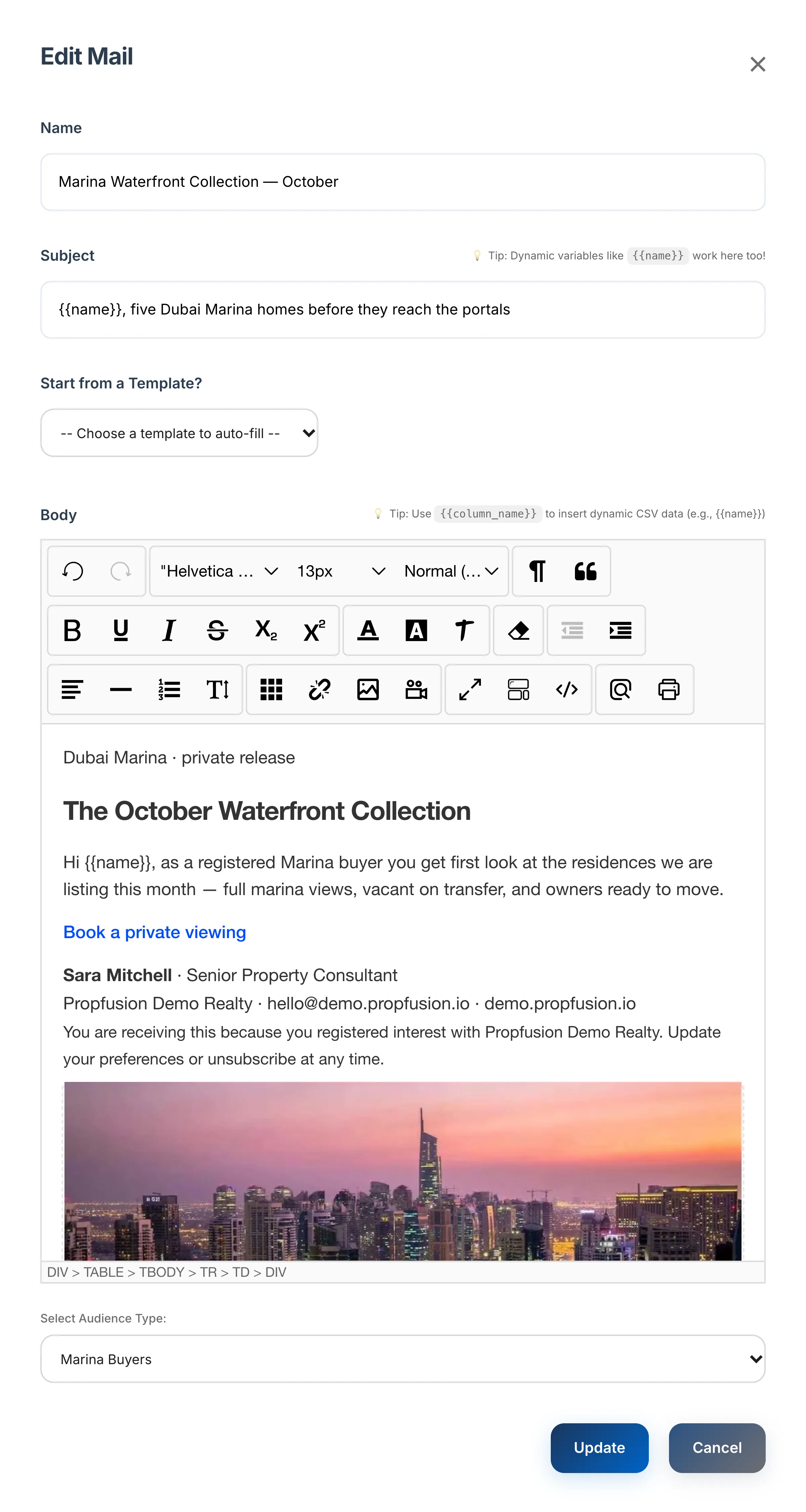
Save your own e-mail templates next to the ready-made ones, then write a campaign with each client's name filled in. Campaigns can go out now or at a time you schedule.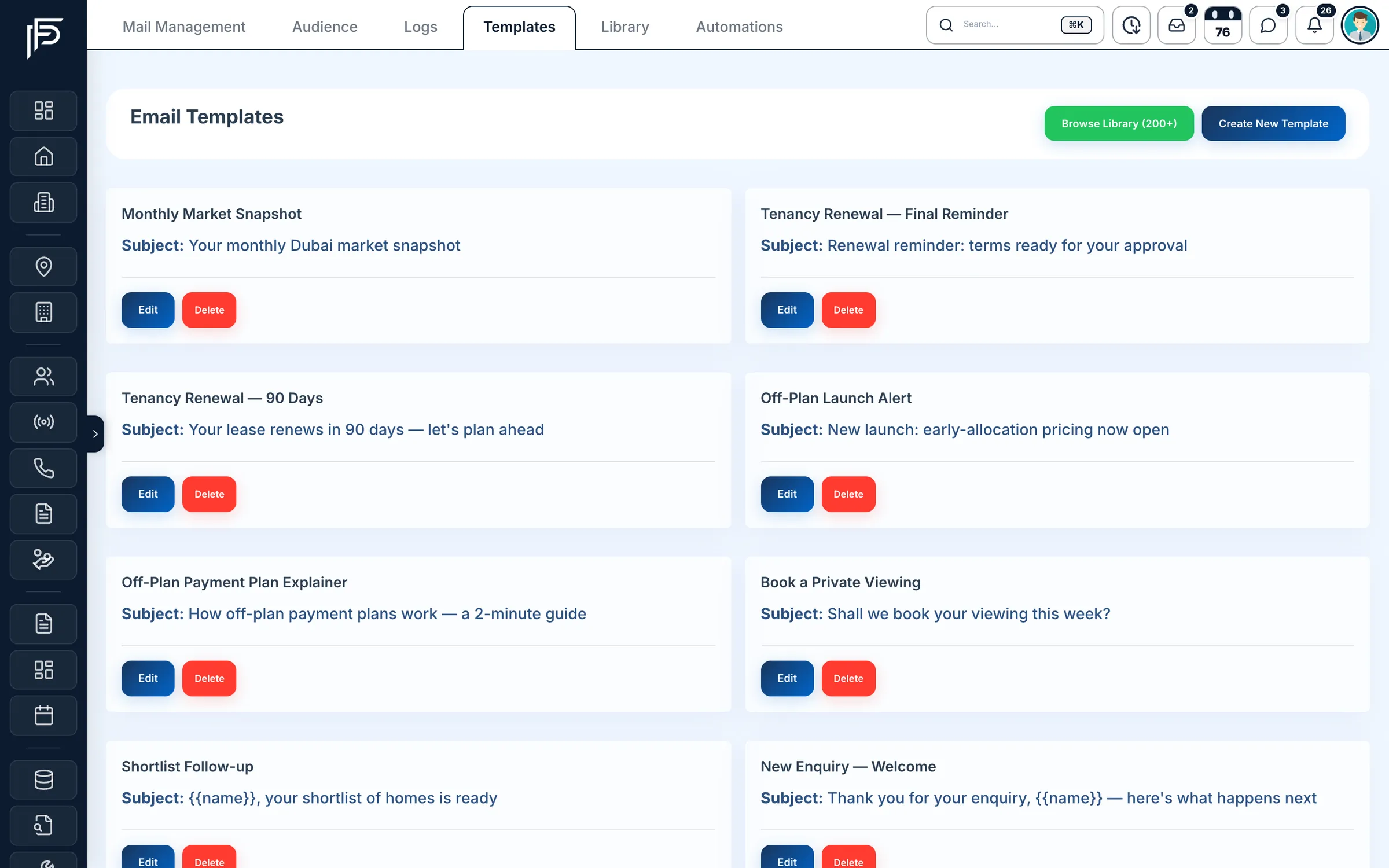
Your saved templates for renewals, off-plan launches and viewings. Check what was delivered
The e-mail log shows every send by date, campaign and recipient, with its status: delivered, opened, clicked or bounced. Addresses that bounced or unsubscribed are left out of the next campaign.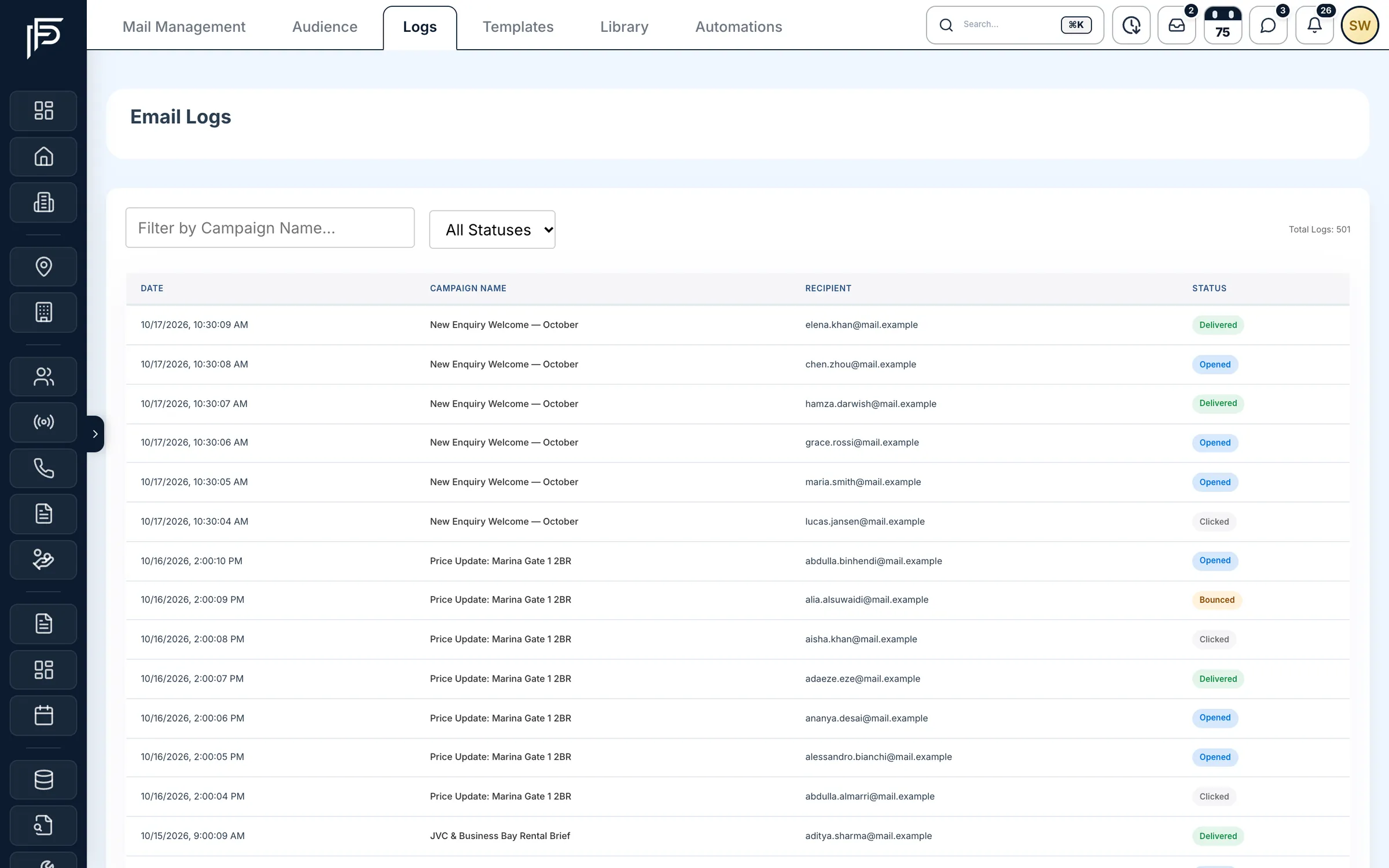
Every e-mail sent, with its delivery status. Decide which automatic e-mails go out
The Automatic E-mails page lists every e-mail the CRM sends on its own, grouped by area, with who gets it and how many went out in the last 30 days. Switch a type off for the whole company, or pause e-mails for one person. Sign-in codes and password resets can't be switched off.
FAQ
Frequently asked questions
- Will clients see Propfusion in the sender name?
No. The sender name is your company's name exactly as you wrote it in the company settings, with no “via Propfusion”, and replies go to your company.
- Can we send the CRM's e-mails through Amazon SES?
Yes. In the SMTP settings choose Amazon SES as the provider instead of SMTP. Use a sender domain you have verified in SES, so the e-mails pass the receiving server's checks.
- What if we don't connect a mail server?
The CRM's e-mails still go out in your company's name, from Propfusion's own sender address. Your own domain is never put in the From line without your own server, because that would fail DMARC and land in spam. Portal invitations and client instalment reminders need your own server.
- Can we switch off an automatic e-mail?
Yes. On the Automatic E-mails page, turn a type off for the whole company, with an undo, or silence one person. Everything stays on until you change it, and security e-mails such as sign-in codes always arrive.
- Do campaign e-mails have an unsubscribe link?
Yes. Each campaign e-mail has a personal unsubscribe link, and mail apps that show their own Unsubscribe button can unsubscribe the person in one click. Unsubscribed and bounced addresses are skipped in later campaigns.
Keep reading
Related pages
- Integrations
WhatsApp Business
How an admin connects the company number through Meta's official sign-up, and what you manage from the CRM afterwards.
Read more - Use cases
Leasing & property management
Tenancy contracts filled from the CRM, rent cheques from due to cleared, Ejari details and documents kept on each rental, renewals and owner payouts.
Read more - Integrations
Website forms & API
Website enquiries become leads through the lead API, and website tokens let your site show live listings, developers and agents.
Read more
Sources
- Automatic e-mails: see every one, switch any off (release notes) · Propfusion · checked
- E-mail marketing (feature tour) · Propfusion · checked
Updated · Checked with AI tools against the product and official sources · How this page is made
Screens on this page show the Propfusion Demo Realty sample workspace. All people, listings and numbers are fictional.
Make every e-mail look like it came from you
Start a free trial and connect your mail server, or book a demo and see a campaign go out under your name.
7 days free · No card needed