Integration · Property portals
Property Finder, Bayut and Dubizzle integration: listings out, leads in
Propfusion publishes each listing to the portals you choose, per listing, from your own portal accounts, and shows whether it is live on each one. Property Finder, Bayut and Dubizzle enquiries (WhatsApp, e-mail and calls) arrive in your leads list as they happen, each with its source and the listing it was about.
7 days free · No card needed
- Your own portal accounts
- Portals chosen per listing
- Enquiries as they happen
Updated · Checked with AI tools against the product and official sources · How this page is made
At a glance
- Set-up
- Settings › Integrations: your Property Finder and Bayut keys, and the XML feed and webhook keys for Bayut and Dubizzle
- Per listing
- Switch each portal on or off on the listing's Portals step. Only the portals your company enabled appear
- Status
- Live, waiting for admin approval, sent for approval, or will be removed, with a Check portal status page for troubleshooting
- Permit
- With a connected portal account that offers permit checks, and your company licence number in the settings, the permit number is checked on the listing form. Otherwise the expiry is typed in
- Permit expiry
- The listing agent is alerted 30, 14 and 7 days before the permit expires and when it does; the portal ads are switched off after it expires
- Leads in
- Property Finder enquiries by webhook; Bayut and Dubizzle call and WhatsApp enquiries through their webhook keys
- Bayut packages
- Bayut Standard publishes to Bayut and Dubizzle; Exposure Basic to Bayut alone
- Routing
- Portal leads go to agents by your distribution plans, with a response target for each
- Calls
- Calls to your portal tracking numbers appear in the CRM's Calls list, one record per call
Set-up and daily use
How the portal integration works
An admin connects the accounts once. After that, agents choose portals listing by listing.
Connect your portal accounts
An admin opens Settings › Integrations and enters the company's Property Finder and Bayut keys, then the Bayut and Dubizzle XML feed and webhook keys. Saving portal keys needs the Manage integrations permission, and agents never see them. Add your company's licence number in the company settings so permit numbers can be checked.Add the listing with its permit number
Fill in the listing in guided steps. On the compliance step, type the permit number: with a connected portal account that offers permit checks it is checked and its expiry saved; otherwise, type the expiry yourself. A listing must be Active to go live.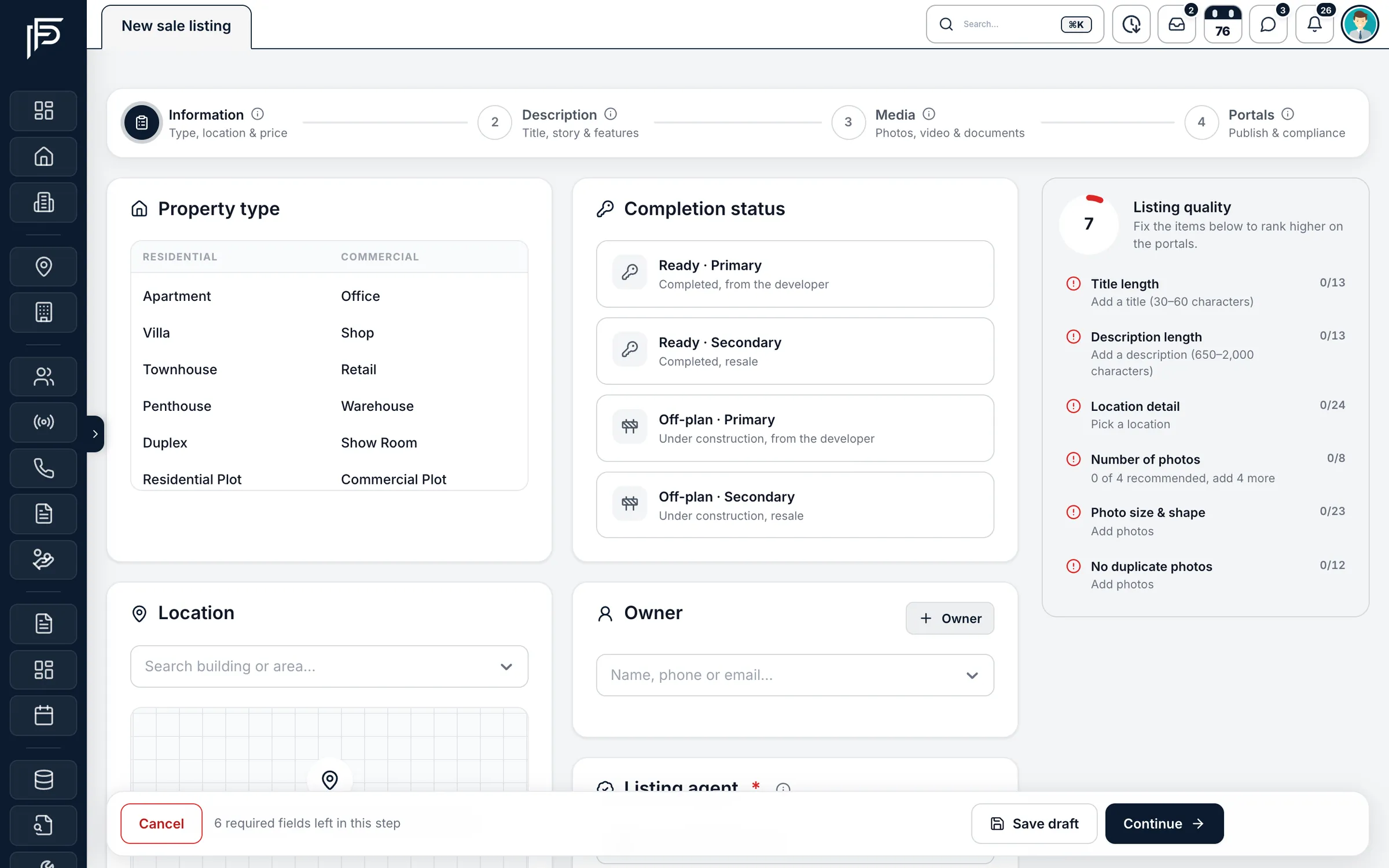
A new listing in guided steps, ready for the portals. Choose the portals and the agent on each
On the Portals step, switch on Property Finder, Bayut, Dubizzle or your own website, and pick the agent each portal shows. An agent who may not publish creates a request instead, and a manager approves or rejects it.See where each listing is live
Each listing card shows its portals, permit and an expiry warning when the permit is close to running out. If something is off, Check portal status in the listing's menu explains what went wrong and walks you through the fix.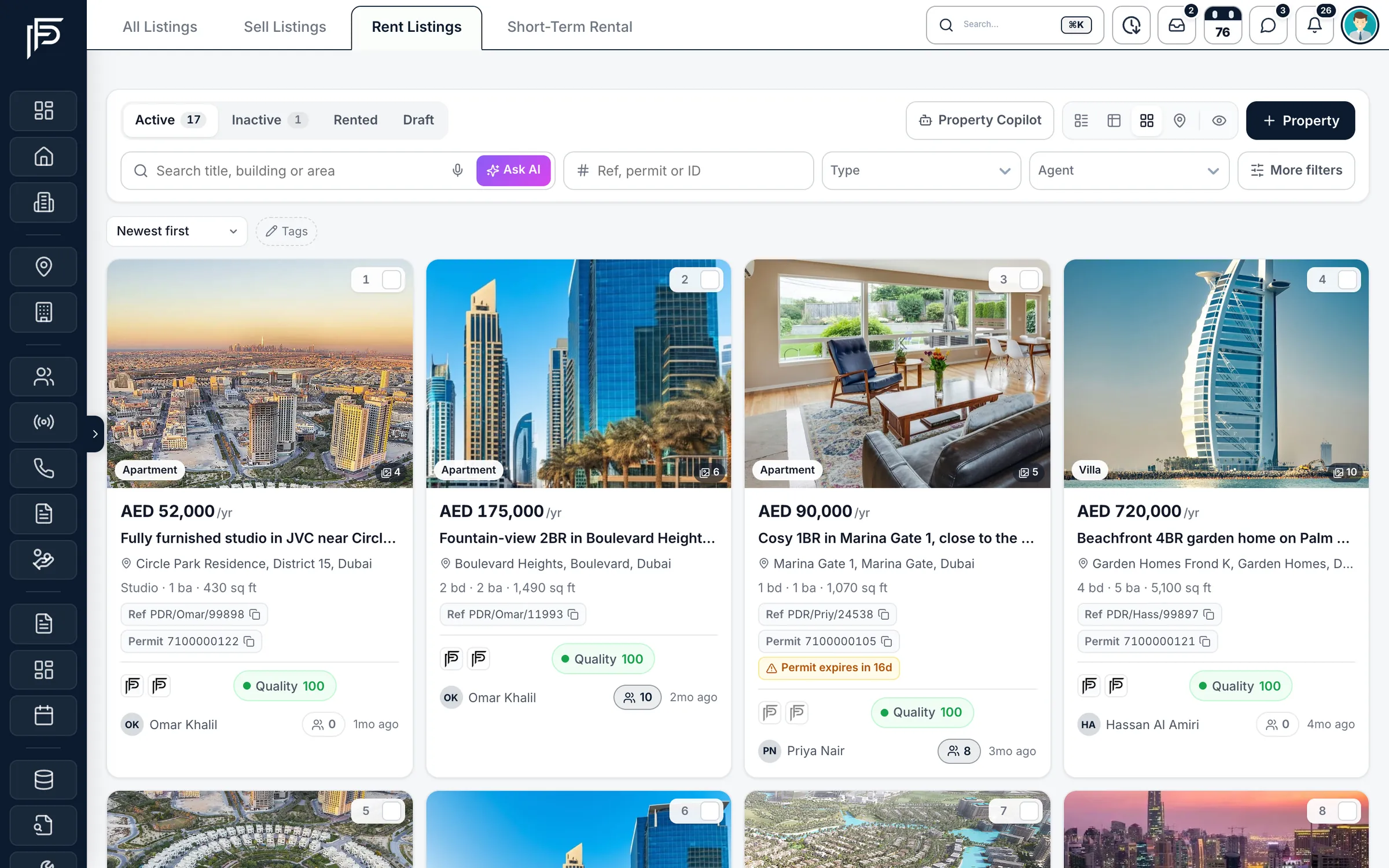
Rentals with their permits, expiry warnings and portal status. Enquiries arrive with their source
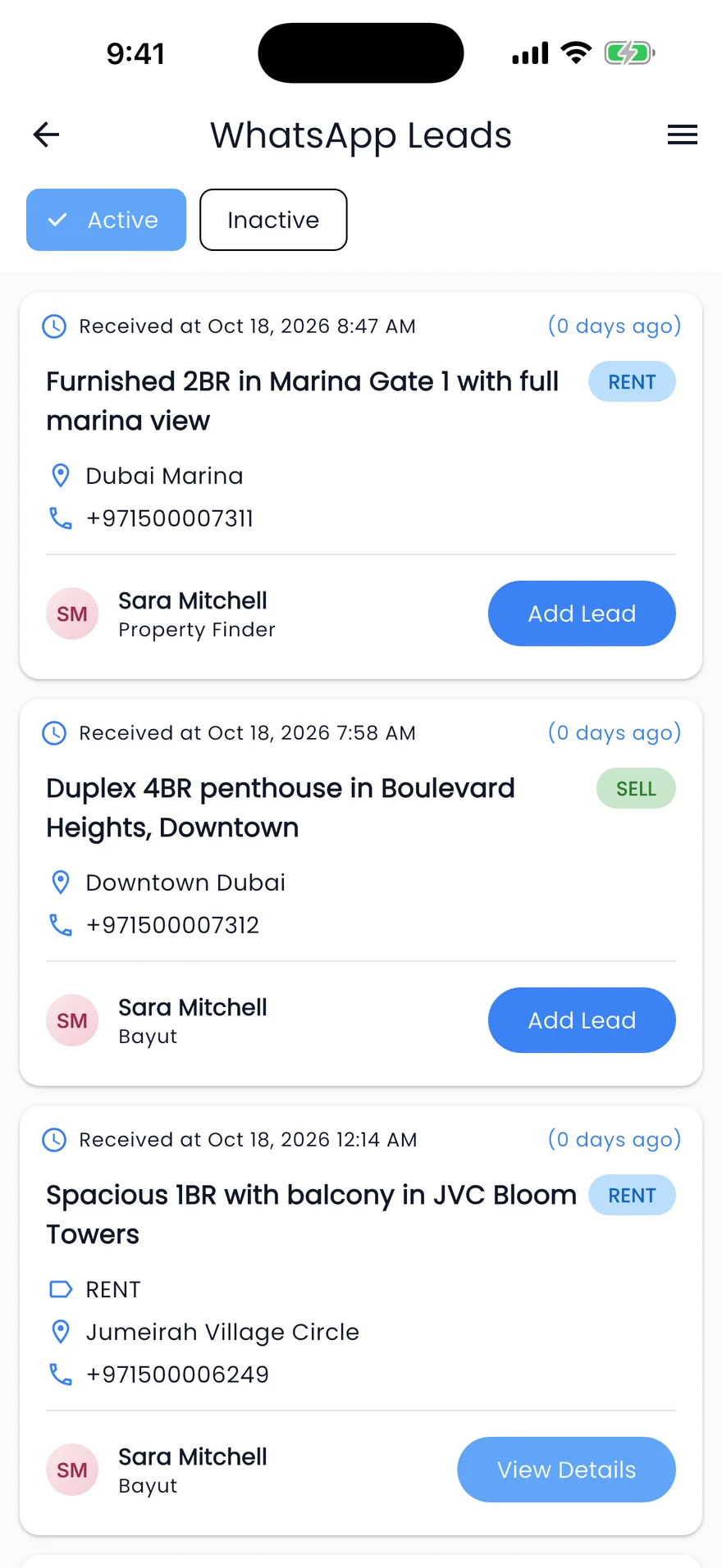
WhatsApp, e-mail and call enquiries from the portals land in your leads list as the portal sends them, each tagged with the portal and linked to the listing it was about.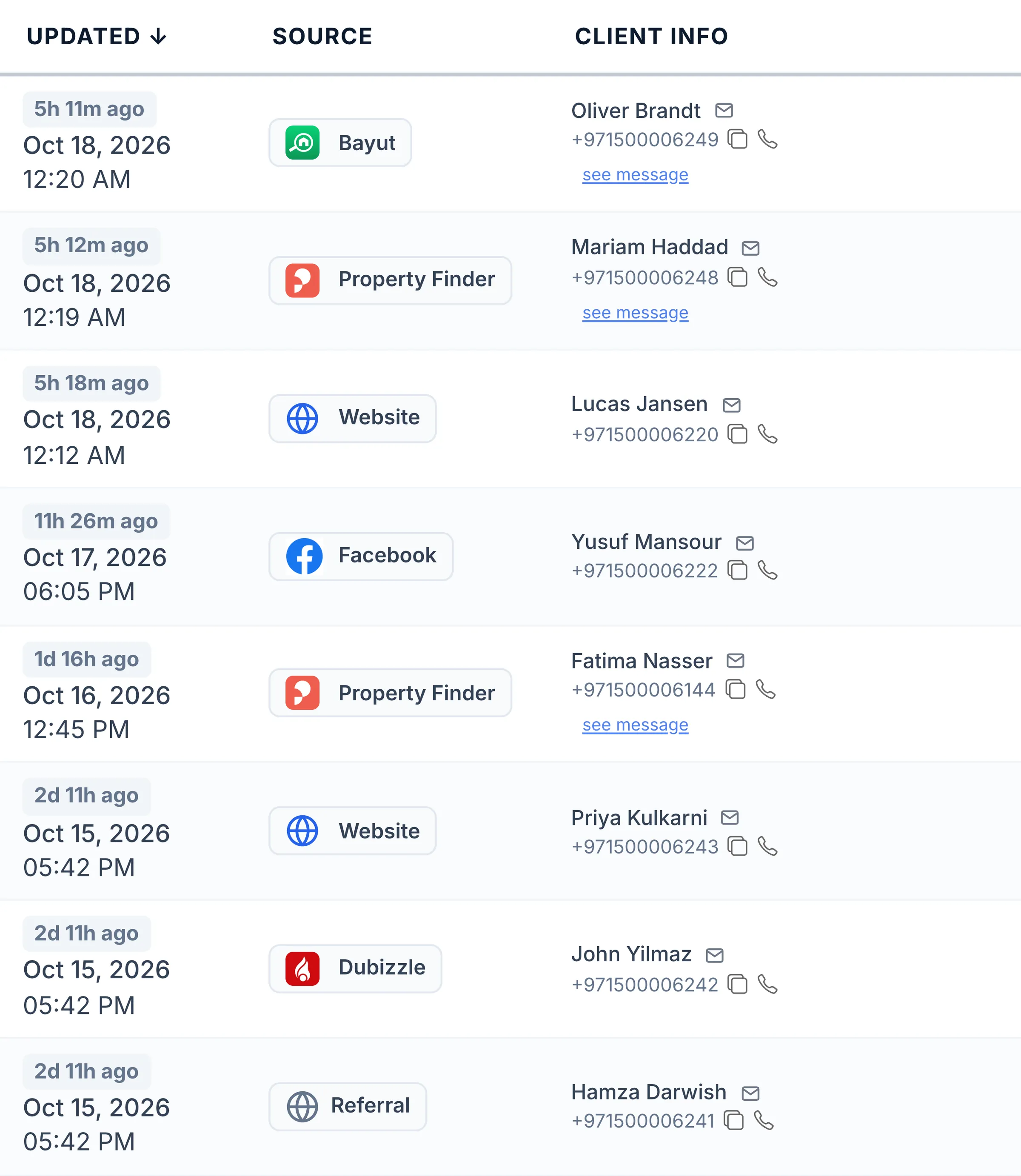
Every lead keeps the portal it came from. Route them to the right agent
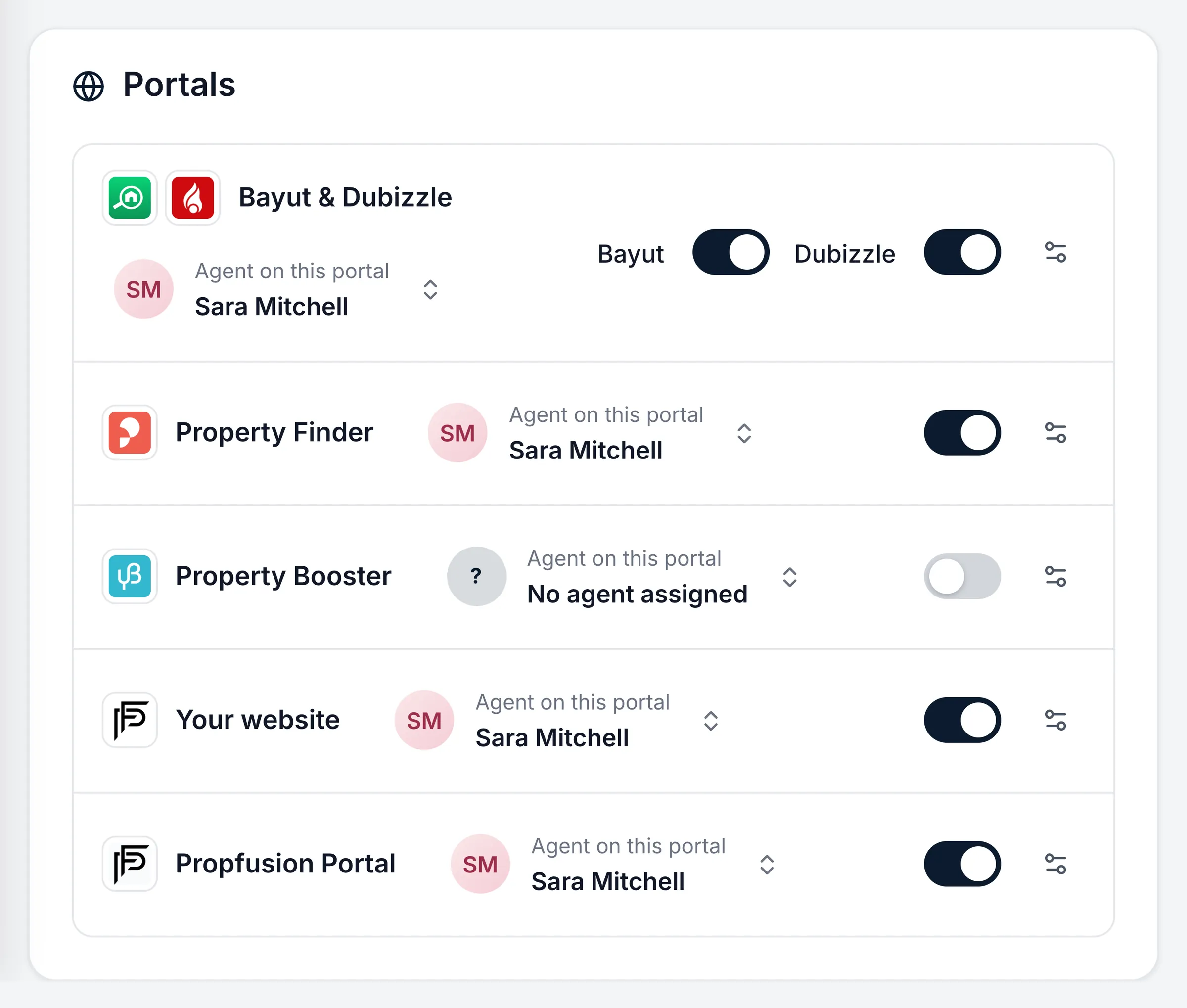
A distribution plan per portal decides who gets each lead: round robin, single pass or a pool, with weights, a cap on open leads and a response target. Agents get a live alert in the app.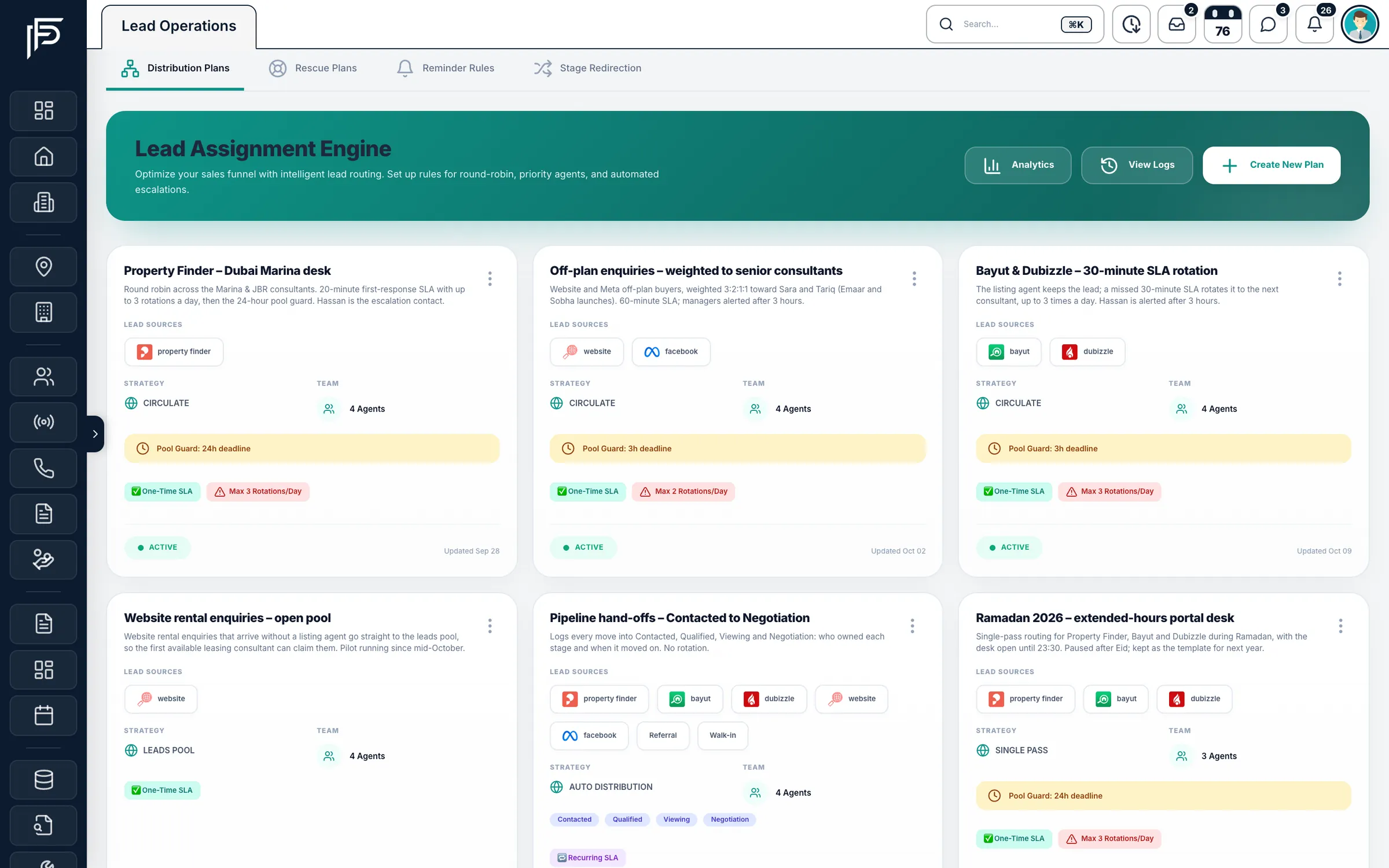
A distribution plan for each portal, with its response target.
Good to know
Before you connect
What the integration needs from you, and what stays your responsibility.
- You need your own Property Finder and Bayut accounts; the CRM publishes through them with your keys.
- With Bayut, the Standard package publishes to Bayut and Dubizzle, and Exposure Basic to Bayut alone.
- A listing goes live when it is Active and at least one portal is switched on for it.
- Agents without the publish permission send a request; a manager approves it from Requests.
- Without a connected portal account that offers permit checks, type the permit's expiry date on the listing yourself so the alerts still work.
FAQ
Frequently asked questions
- Do we need our own Property Finder and Bayut accounts?
Yes. Propfusion publishes through the portal accounts your company already pays for, using the keys from those accounts. It is not a property portal itself, so you keep your own portal contracts.
- Can an agent publish to a portal without approval?
That depends on their role. Agents with the publish permission go live when they save; for the others, switching a portal on creates a request, the listing shows “Waiting for admin approval”, and a manager approves or rejects it.
- How fast do portal leads arrive in the CRM?
As fast as the portal sends them. Property Finder, Bayut and Dubizzle push enquiries by webhook, so a lead appears in your list, goes to an agent and raises an alert in the app as soon as it arrives.
- What happens when a listing's permit expires?
The listing agent is alerted 30, 14 and 7 days before the expiry date, and once more when it has expired. After it expires, the listing's Property Finder, Bayut and Dubizzle ads are switched off; once the permit is renewed, the switch-off is lifted.
Trakheesi permit checklist- Can we choose which agent a portal shows on a listing?
Yes. Each portal on a listing has its own agent field, so the agent shown on Bayut and Dubizzle can differ from the one on Property Finder.
Keep reading
Related pages
- Guides
Trakheesi permit checklist
The advertising permit, the Madmoun QR code and the documents to have ready before a Dubai listing goes live.
Read more - Guides
Answer leads in 5 minutes
Set one response target, route every lead the moment it arrives, move it on after a deadline, and measure the first real reply.
Read more - Integrations
Meta lead ads
Connect your Facebook pages, match each lead form to CRM fields, and send lead-quality events back to Meta.
Read more
Sources
- Propfusion integrations · Propfusion · checked
- Property portals (feature tour) · Propfusion · checked
- Real estate advertisement permit (e-service) · Dubai Land Department · checked
Updated · Checked with AI tools against the product and official sources · How this page is made
Screens on this page show the Propfusion Demo Realty sample workspace. All people, listings and numbers are fictional.
Publish once, answer every portal enquiry
Start a free trial and connect your portal accounts, or book a demo and see a listing go from the form to the portals.
7 days free · No card needed