Integration · Phone systems
Connect your phone system to Propfusion: Yeastar, 3CX, Telnyx and others
Admins connect the company's phone system on one Telephony settings page, add company and tracking numbers, and give each agent the line the system rings first. In the UAE we suggest a Yeastar P-Series PBX from a TDRA-licensed partner on an e& or du line; Propfusion also connects to 3CX, Exotel, Telnyx and any phone system that sends signed call events.
7 days free · No card needed
- Yeastar, 3CX, Exotel, Telnyx
- Keys masked
- Recording rules you set
Updated · Checked with AI tools against the product and official sources · How this page is made
At a glance
- Connectors
- Yeastar, 3CX, Exotel, Telnyx, and a generic connector for any phone system that sends signed call events
- Settings
- Company numbers, agent lines, business hours, recording policy, call limits and an internal do-not-call list
- Keys
- Provider keys are masked whenever they are shown; a Test button checks them; the webhook address carries a token you can rotate
- Call events
- Every provider event arrives at one verified entry point, and rejected ones are listed for troubleshooting
- Unknown callers
- Can become new leads, tagged with the tracking number's source
- Recordings
- On or off for the company or per number, with your own notice, kept 30 to 730 days (180 by default)
- Access log
- Who played, downloaded or deleted which recording, and when
Which connector
Pick the connector for your phone system
All of them end in the same place: calls on the lead, recordings with access rules, and missed calls turned into call-backs.
- In the UAE: a Yeastar P-Series PBX from a TDRA-licensed partner on an e& or du line. It handles your company numbers, hunt groups and agents' extensions.
- Numbers abroad: Telnyx.
- Already on 3CX or Exotel: each has its own connector.
- Anything else: the generic connector accepts any phone system that sends signed call events to the CRM's webhook address.
How agents call, and what happens to every recording and missed call, is on Company phone calls inside your real estate CRM.
Set-up
Connecting a phone system, step by step
Done once by an admin; saving provider keys needs the Manage integrations permission.
Choose your connector
In Settings › Integrations › Telephony, pick Yeastar, 3CX, Exotel, Telnyx or the generic connector, and enter the keys your phone system gives you. Keys are masked whenever they are shown again, and a Test button checks them before you rely on them.Give your phone system the webhook address
The settings page shows the address your phone system should send call events to. It carries a secret token; rotate it if it ever leaks, and the old address stops working at once. Recent events, including rejected ones, are listed so you can see what arrived.Add numbers and agent lines
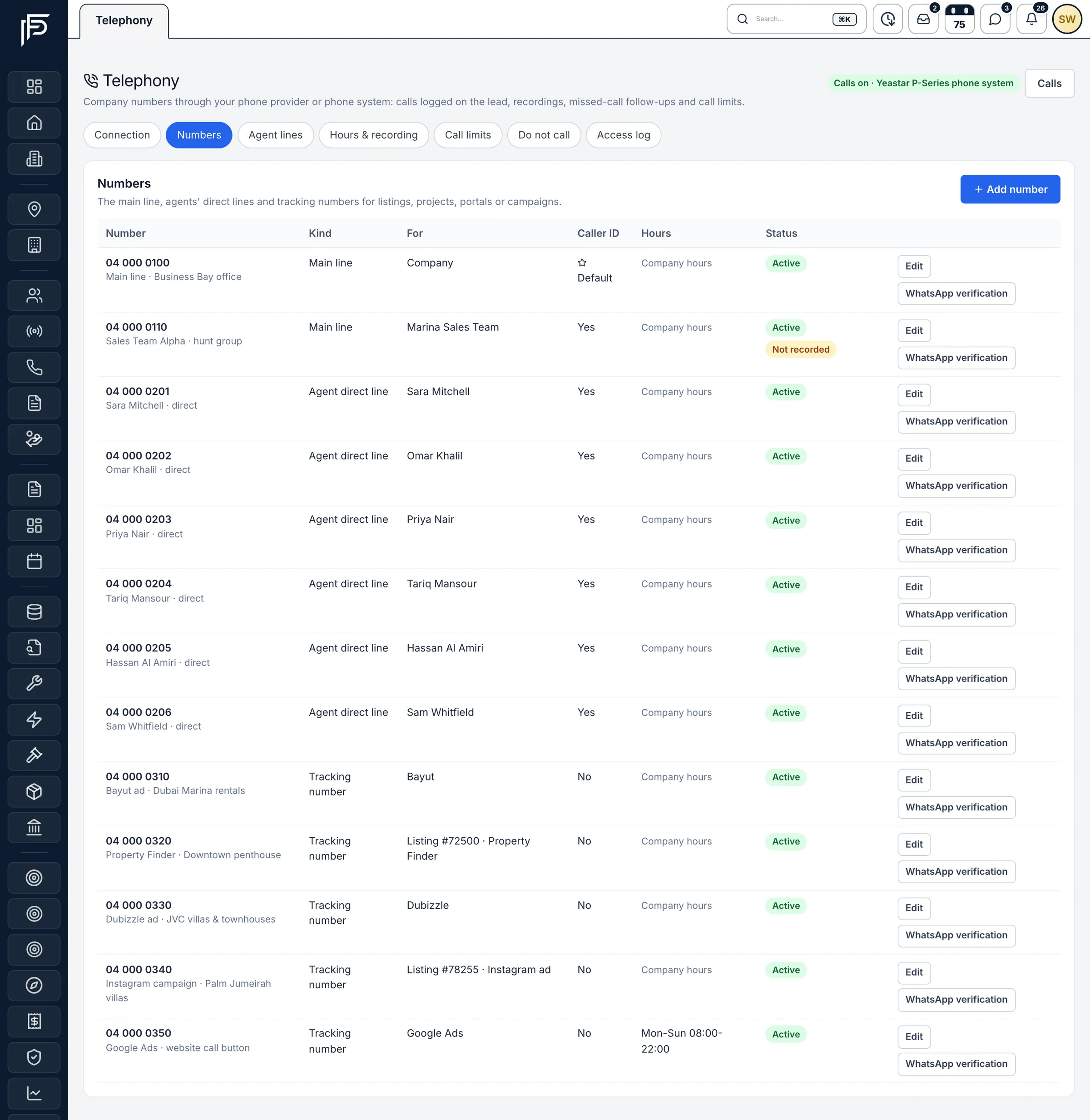
On the Numbers page, add your company and tracking numbers, choose which one is the default caller ID, and set each number's business hours and what happens after hours: voicemail, a forward or a closed message. Then give each agent the extension or mobile the system rings first.Set recording and call rules
Switch recording on or off, write the notice callers hear, choose how long recordings are kept, and set call limits. Add numbers that must never be called to the do-not-call list; agents can also mark a lead “Refused - don't call again”.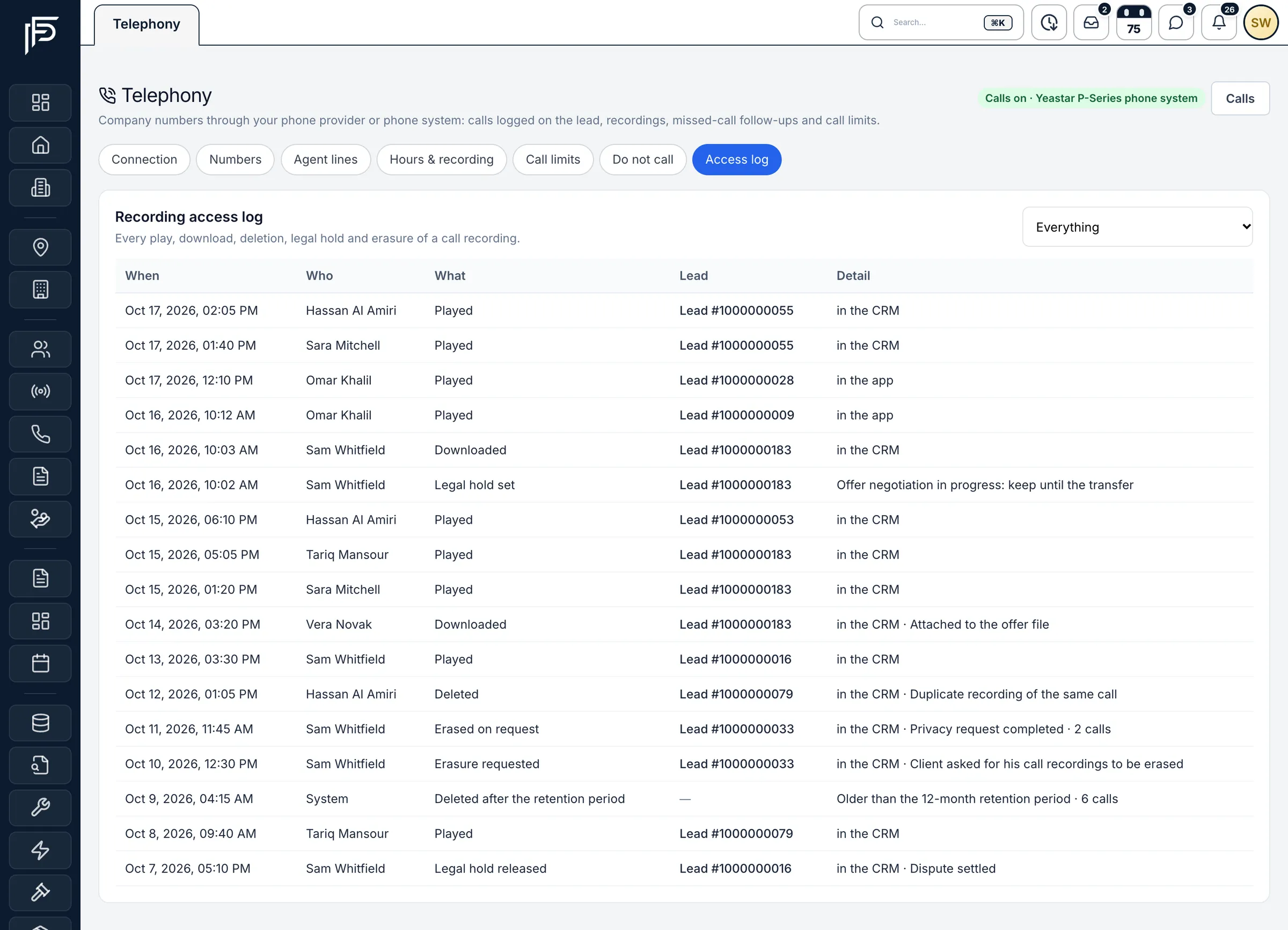
Every recording play, download, legal hold and deletion, logged. Check calls are flowing
Make a test call from a lead. It appears on the Calls page with its direction, status, agent and recording, next to calls to your portal tracking numbers.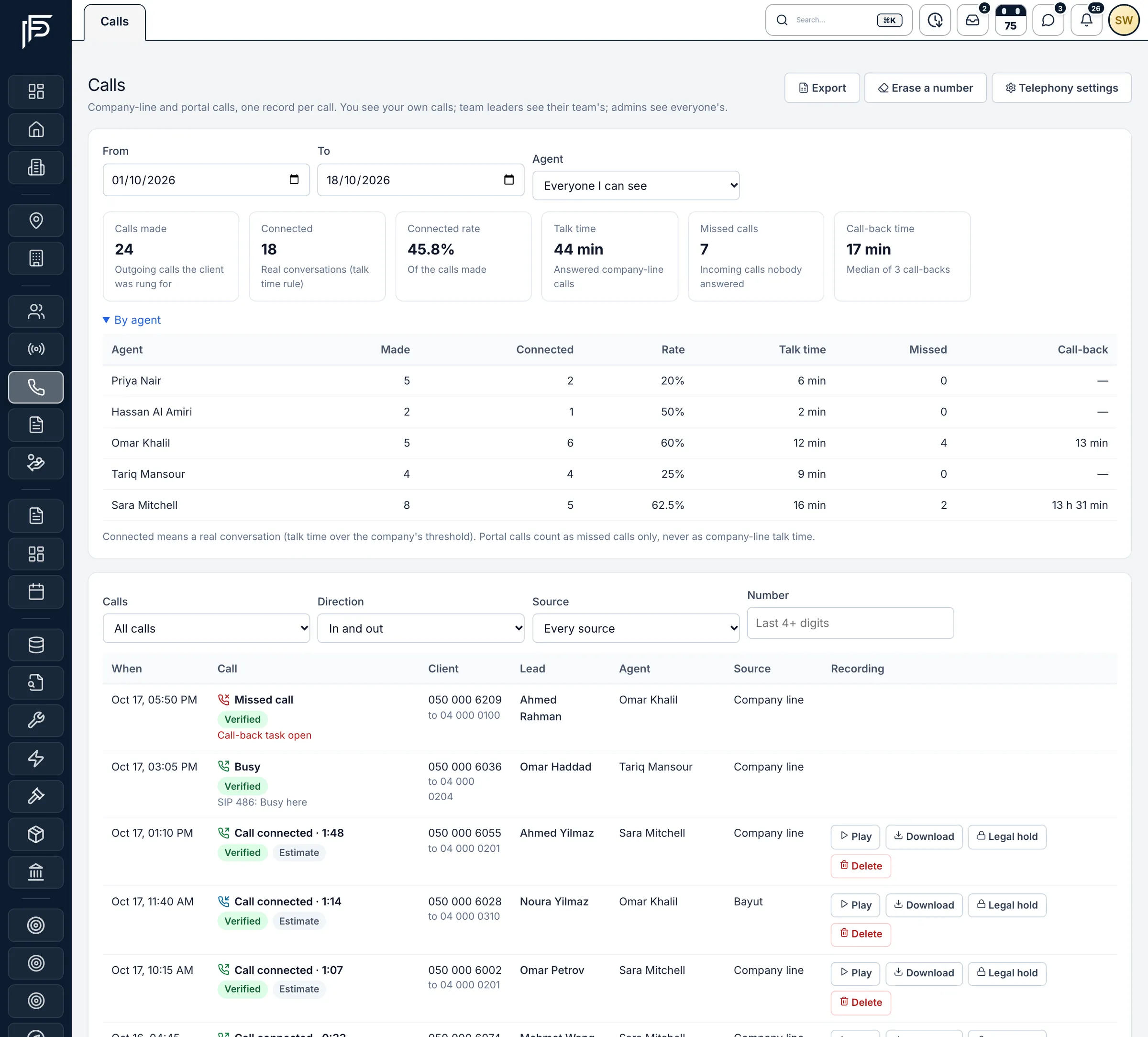
Calls by agent, with connected rate, talk time, missed calls and recordings.
FAQ
Frequently asked questions
- Which phone systems work with Propfusion?
Yeastar, 3CX, Exotel and Telnyx have their own connectors, and the generic connector takes any phone system that sends signed call events. In the UAE we suggest a Yeastar P-Series PBX from a TDRA-licensed partner on an e& or du line.
- Do we need a new phone number?
No. Use the numbers your phone system already has: add them on the Numbers page as company or tracking numbers, and choose which one clients see when an agent calls.
- Can we hide agents' mobile numbers from clients?
Yes. Calls from the CRM go out from a company number. The agent's own extension or mobile is rung first, and the client sees the company's caller ID.
- Can we turn call recording off or announce it?
Yes. Recording can be switched off for the company or for a single number, and you write the recording notice yourself. You also choose how long recordings are kept, from 30 to 730 days.
- Who can see our phone provider keys?
People with the Manage integrations permission; admins have it. Even they see the keys masked, and agents never see the settings page.
Keep reading
Related pages
- Use cases
Calls & recordings
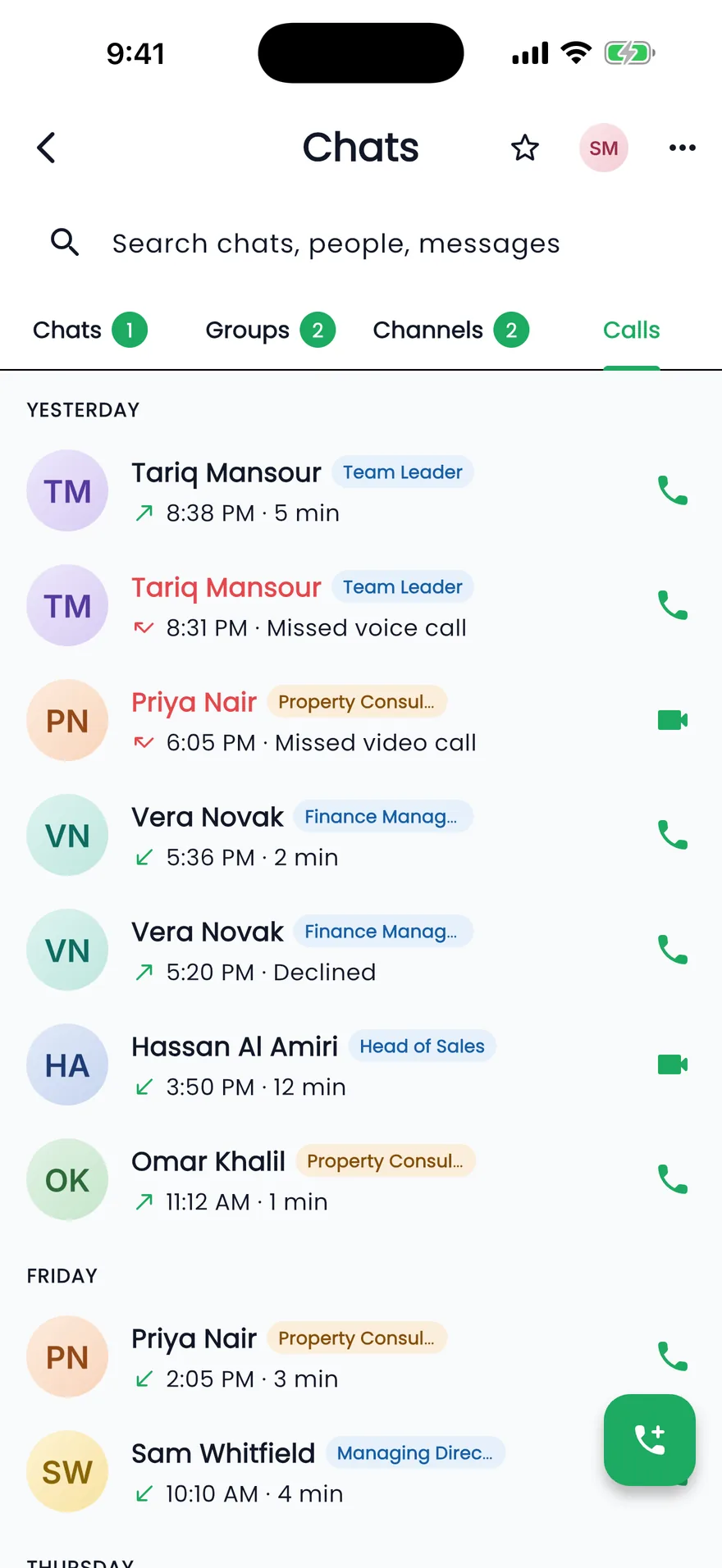
Click to call from a lead on a company number, with every call and recording saved on the lead and missed calls turned into call-backs.
Read more - Integrations
Property portals
Publish each listing to the portals you choose from your own accounts, and receive their enquiries in your leads list as they happen.
Read more - Integrations
Website forms & API
Website enquiries become leads through the lead API, and website tokens let your site show live listings, developers and agents.
Read more
Sources
- Company phone lines in the web CRM (release notes) · Propfusion · checked
- Calls (feature tour) · Propfusion · checked
- Propfusion integrations · Propfusion · checked
Updated · Checked with AI tools against the product and official sources · How this page is made
Screens on this page show the Propfusion Demo Realty sample workspace. All people, listings and numbers are fictional.
Put your company numbers inside the CRM
Start a free trial and connect your phone system, or book a demo and talk through your set-up with our Dubai team.
7 days free · No card needed